
Academics
Bell Schedule Templates
Start your school day from a ready-made shape rather than typing forty periods, then edit it like any other bell schedule.
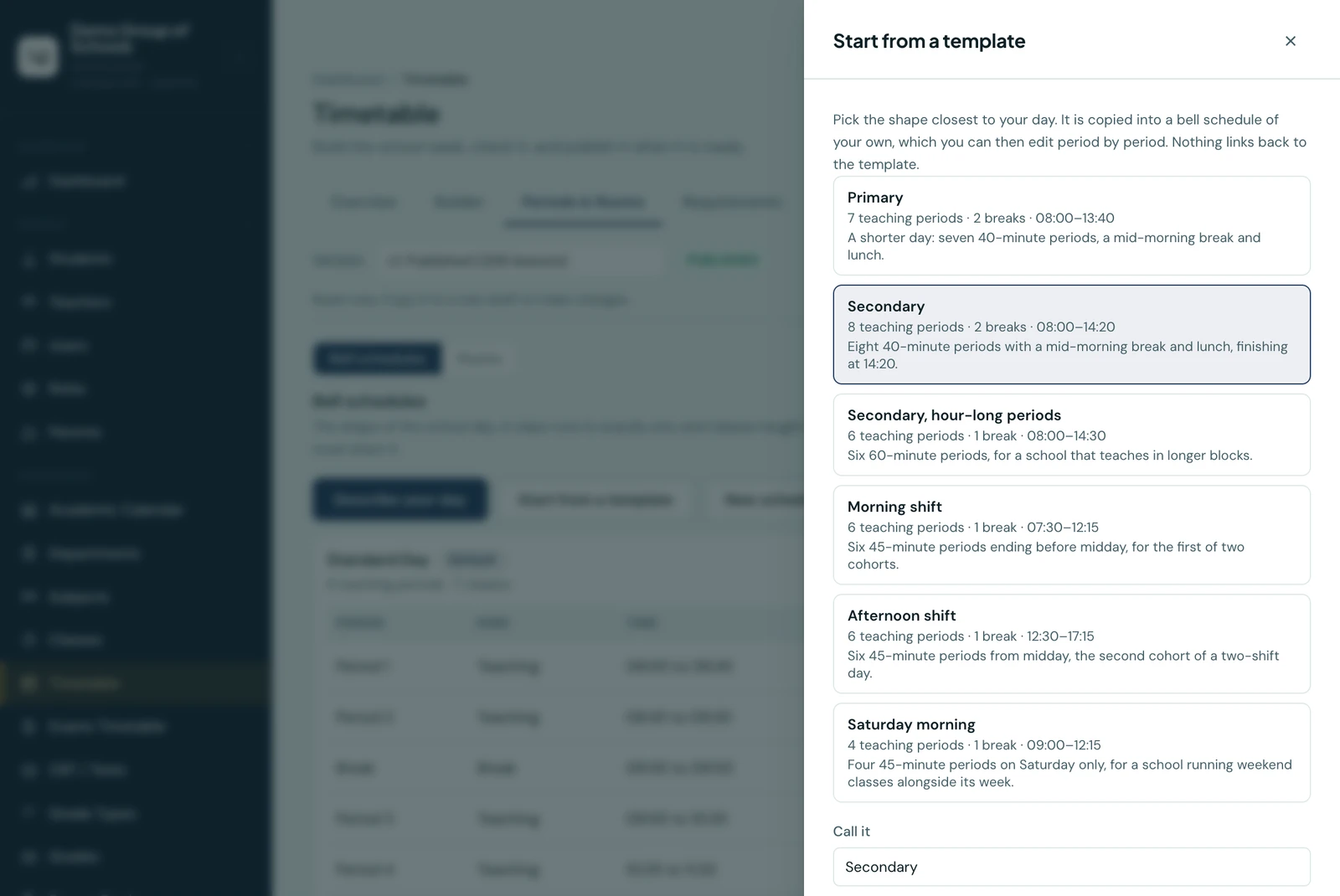
Nothing in the timetable can be built until the school has a bell schedule: the shape of its day, period by period, with its breaks. Typing that out is the first thing the timetable asks of you and the dullest: a name, two clock times and a position, forty times over, before a single lesson can be placed.
Start from a template does it in one click.
Using one
On Timetable → Periods & Rooms, choose Start from a template. Pick the shape closest to your day, give it a name (the template's own name is filled in, which most schools keep) and choose whether it becomes the default for classes with no schedule of their own.
The periods arrive with it. From that moment it is an ordinary bell schedule: rename it, move the bells, add a period, delete one, assign classes to it. Nothing links back to the template, so there is no question of a later change to ours moving your school day.
What is on offer
| Template | The day |
|---|---|
| Primary | Seven 40-minute periods, a mid-morning break and lunch, 08:00 to 13:40 |
| Secondary | Eight 40-minute periods, a break and lunch, 08:00 to 14:20 |
| Secondary, hour-long periods | Six 60-minute periods for a school teaching in longer blocks |
| Morning shift | Six 45-minute periods from 07:30, finishing at 12:15 |
| Afternoon shift | Six 45-minute periods from midday, the second cohort of a two-shift day |
| Saturday morning | Four 45-minute periods on Saturday only, alongside the ordinary week |
The times are a starting point, not a recommendation. A school that starts at 07:30 moves eight periods once instead of entering forty fields.
Copying one of your own
Each schedule also has a Duplicate action, which is the same idea applied to a day you have already built. It is what you want for a second shift, a sister section, or an exam week that runs to its own bells: start from the day your school actually rings rather than from our guess at one.
Every period is copied. Classes are not, because a class runs to exactly one bell schedule, so moving them onto the copy is a decision you make afterwards, class by class, under Classes.
Days a period runs
Most periods run every day the school teaches, which is what a new one assumes. A period that does not, such as a Monday assembly or a Saturday morning, is set to the days it runs on the period itself. A period with no days at all is refused, since a period that never runs is not a period.
When one day is a different shape
Plenty of schools run a short Friday: 40-minute periods Monday to Thursday, 30 on Friday, or an early finish for assembly. This is one bell schedule, not two. A class runs to exactly one schedule, so a separate Friday schedule is not something you could also put Year 7 on.
Build it as two sets of periods inside the same schedule, each set naming its own days:
| Period | Time | Days |
|---|---|---|
| Period 1 | 08:00 to 08:40 | Monday, Tuesday, Wednesday, Thursday |
| Period 2 | 08:40 to 09:20 | Monday, Tuesday, Wednesday, Thursday |
| Friday 1 | 08:00 to 08:30 | Friday |
| Friday 2 | 08:30 to 09:00 | Friday |
The two sets may cover the same clock times, because they never happen on the same day. Everything downstream reads the days: the generator offers Friday its own periods and the rest of the week theirs, teaching minutes are counted per weekday, and a printed timetable leaves a period blank on a day it does not run.
Two things to know before you build one. Describe your day does not do this: it builds the ordinary day, and the Friday periods are added afterwards on the schedule itself. And the week grid on screen has a row per period, so a schedule holding two shapes of day is a taller, sparser grid than a school with one shape: every Friday row is blank Monday to Thursday and every ordinary row is blank on Friday. It is correct, and it is not as compact to read.
Deleting one
A bell schedule can be deleted outright. Three things stop it, and each says so rather than failing quietly: a schedule with classes on it (move them first), one whose periods hold lessons in some version, and the school's default (make another one the default first). Deleting a single period works the same way and takes any lesson placed in it.
Running more than one
A school can keep as many bell schedules as it needs, and each class is assigned to one. That is how a group with a primary and a secondary section on one site runs two different days, and how a two-shift school runs two cohorts through the same rooms.
The one rule: classes taught together must share a schedule. Two classes sitting the same lesson have to agree about when Period 3 is.
Ready to try it with your school?
Three-month Basic trial. No card required to register.