
Academics
Staff Attendance and Clock-In
Staff clock in and out from their own phone, checked against your school's location. See who is in, who is late and who has not arrived, with a monthly record per person.
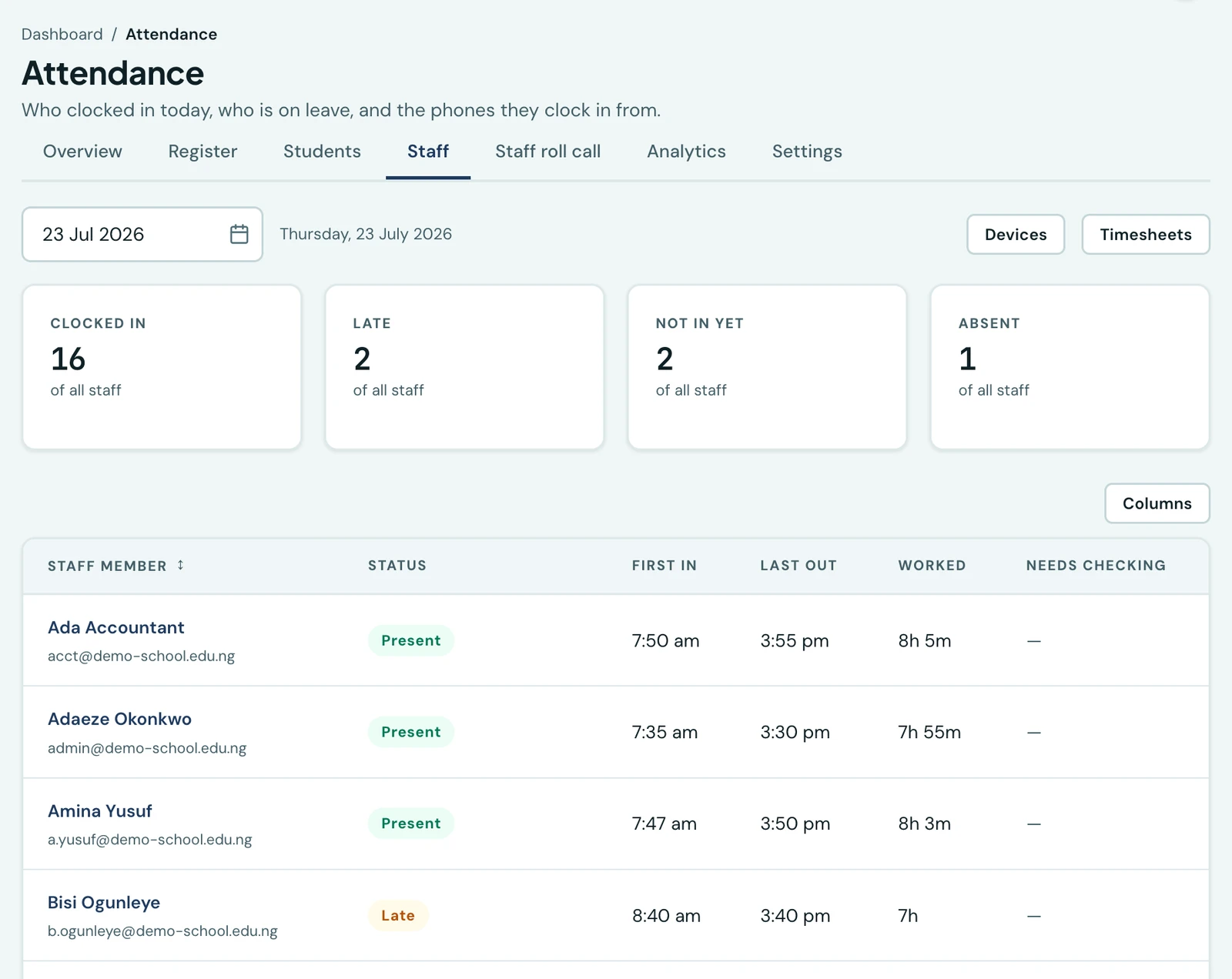
Staff clock in and out from their own phone. The platform checks they are at the school when they do it, and builds each person's day from what they actually recorded.
How a member of staff clocks in
Clocking in happens in the 1410SMS app, on the member of staff's own phone. There is nothing to install at the school and no hardware to buy.
- Open More, then My Attendance. It is called My Attendance rather than Attendance because the pupil register sits beside it under the same word, and one of the two marks 4B.
- Set up this phone, once. The first visit offers a single button. Tapping it ties clocking in to that handset, which is what stops one phone clocking in three people. Depending on how your school has set things up, an administrator approves the phone before it can be used, and the screen says so while that is pending.
- Tap Clock in. The button is the whole screen's point and reads Clock in or Clock out according to which one is next. If your school has set a location, the phone is asked where it is at that moment; a tap from outside the radius is refused and says why, rather than being recorded and queried later. While the screen is open, a line under the button says whether the phone has found where it is, and, if it seems to be somewhere else, roughly how far it is from your school. The button works whatever that line says: the check that counts is the one made on the tap. A clock-in that worked is confirmed in green above the button, with the time it was recorded, and the phone vibrates where its vibration for touches is switched on, so nobody needs to tap again to make sure.
- Tap Clock out on the way home. The same button, now reading Clock out. The app asks "Clock out now?" first, naming when the shift began, so a second tap by mistake does not record somebody leaving while they are still at school. The hours between the two are the day's total, and the screen shows the day as it stands, along with a link to the member of staff's own last thirty days.
A morning reminder can be sent to anybody who has not clocked in yet. It is a clock rather than a tracker: the app never watches where a member of staff is, and reads their location only while the clock-in screen is open. See Privacy below.
What a clock-in is checked against
Their own phone, always. Each member of staff sets up their own device, and no two accounts at your school can share one. This is what stops a single phone clocking in three people, which is the thing that actually happens where only location is checked, and it is not something a school can switch off: without it a clock-in tells you a phone was at the school, not who was holding it. You do choose how many phones one person may set up, for staff carrying a work handset and a personal one, and each of those still belongs to that one person.
Your school's location is the check you add on top. You set a pin and a radius; a clock-in from outside it is refused. A phone reports its position with a margin of error, and the reading has to place somebody inside your radius allowing for that margin, not merely be consistent with it. So the ground staff can clock in from is a little smaller than the circle you draw, and a vague reading taken up the road cannot borrow its own error to reach your school. Clearing it means a clock-in can be made from anywhere, on the right phone, which suits a school whose staff move between sites.
More checks always run and cannot be switched off, because without them the first two do not mean much. These three can refuse a clock-in:
- A location reading too vague to prove anything. A phone on battery-saving location reports a position accurate to a few hundred metres, which would satisfy your radius from the next street. A reading that does not say how accurate it is counts as vague, rather than being let through.
- A device reporting a faked location. Spoofing apps are one search away, and a radius check cannot see them.
- A second tap moments after the first. There is a minimum gap between one person's punches, so a double tap on a slow morning is turned away instead of recording an arrival and a departure seconds apart that somebody has to correct later. It is the one refusal that is nothing to do with where you are: the message says another punch was just recorded and how long to wait, and waiting is the whole of the remedy.
Two more things always hold, and are worth knowing even though neither turns anybody away:
- The time is stamped by the server, never taken from the phone. Otherwise changing the phone's clock would change somebody's arrival time. How far the handset's own clock was from ours is recorded beside the punch as evidence, for the argument six months later, but it never refuses anything: there is nothing to refuse, because the phone's clock was never used.
- A day your calendar records as closed does not stop anybody clocking in. Staff work when the pupils are away: holiday classes, the office over half term, exam marking, a caretaker on site. The closure is recorded beside the punch instead, so a shift worked over the break is visible as one, and the hours count towards the timesheet as normal. What the day does not become is a "day present" in the punctuality figures, because those are measured against the days your school was open, and counting a holiday on one side of that sum and not the other would push the rate above 100%. A class register is still refused on a closed day; that rule is about pupils and has not changed.
When a clock-in is refused, nothing is recorded and the staff member is told exactly what to do about it. The refusals are also logged, so if your pin is in the wrong place you can see the pattern rather than hearing about it one person at a time.
Setting your school's location
Go to Attendance → Settings on the web, or Settings → School location in the mobile app. You can type coordinates you already have, or stand at the school and capture the pin, which is what most schools do. The radius is set beside it; 75 metres reaches a gate and a car park.
The rule everything follows
A phone does not report a point. It reports a circle: "here, give or take 15 metres". A clock-in is accepted when that whole circle sits inside your radius, which is to say when the distance from your pin plus the reading's own margin of error comes to less than the radius.
Two things follow from that, and both surprise people:
The circle you draw is not the ground staff can clock in from. A 75 metre radius, read by a phone that is out by 15 metres, admits somebody standing within 60 metres of the pin. The rest of the circle is spent on the phone's uncertainty. That is deliberate: without it, a vague reading taken up the road borrows its own error to reach your school, and somebody clocks in from the bus.
Your pin's own error is charged as well. Everybody is measured against the pin, so if you captured it to 40 metres, that 40 metres comes off every member of staff's allowance too. It is why both screens tell you what a capture was accurate to, and say so when the pin is too vague for the radius you have drawn around it.
Capturing the pin
Set it from a phone if you can. A laptop works out where it is from the Wi-Fi around it and is routinely hundreds of metres out, while a phone has a GPS in it. Capture it outdoors, standing at the school, and look at the figure the screen gives you: 10 to 20 metres is what a phone with a clear view of the sky reports, and is what you want. If the screen says the pin is too vague for your radius, take it again outside rather than saving it.
Stand where your staff will actually be. A pin captured at the back of the building, in the bursar's office, puts the centre of the circle somewhere nobody arrives. If people clock in at the gate, capture it at the gate.
Then set the radius to reach the furthest point staff clock in from, plus about 20 metres of headroom for their phones. Below about 50 metres, staff standing in the right place will still be turned away once an ordinary reading's margin of error is taken into account, so the platform will not let you go tighter than that. The location list also says so directly: where a radius does not leave room to stand in, the line under that location names the figures, on the web and in the app. It is worth reading, because the refusals a tight radius causes are worded as a vague reading and look like a problem with your staff's phones.
A school with a second site, such as a nursery down the road, adds another location. Staff clock in at whichever they are actually at, and the record names which one, so your reports can tell the sites apart. That is a better answer than one enormous radius drawn to cover both, which also covers everything between them.
Leave the accuracy setting alone
There is a second figure in the settings, the accuracy your school will accept, and it is the one most likely to be tightened into causing the problem it looks like it prevents.
It is not the precision you are demanding. Your radius already decides who is inside, and decides it better, because it weighs the distance and the margin of error together. The accuracy figure is a floor on what will be believed at all, which turns away the reading from a phone on battery-saving location before it is weighed. Lowering it does not tighten anything the radius has not already settled. It only turns away staff whose readings the radius would have accepted.
Set it below your radius and it starts refusing people standing on your own pin. Left alone, it never fires on an ordinary school and starts earning its keep on a large campus, where a very vague reading could otherwise be proven inside a 400 metre circle from the next street.
What to tell your staff
- Allow precise location, not approximate. Android's permission dialog offers both, and the approximate one is deliberately fuzzed to about a kilometre. No amount of waiting improves it. The app recognises that grant and says so rather than leaving somebody pressing a button.
- The first clock-in of the morning can take up to half a minute. The phone is finding satellites from cold, having had no reason to overnight. The screen starts looking the moment it opens, says "Location found." once the phone has a reading good enough to clock in with, and a tap after that does not wait for the location again.
- Step outside, or stand near a doorway. Deep inside a concrete building there is no satellite reading to be had, and that is the one case no amount of patience solves.
Reading the refusals
The two location refusals mean opposite things, and the wording is chosen so nobody is sent to do the wrong thing about it:
- A reading too vague to prove anything means they are probably in the right place, but the reading cannot show it. Wait a moment, or step outside.
- Outside the radius means the reading places them beyond the circle. Walk closer, or your pin is in the wrong place.
Refusals are logged whether or not anybody mentions them, so a run of them against one location is the signal that your pin or your radius is wrong, rather than that your staff's phones are bad.
The check worth doing once
Set the pin, then walk to the furthest corner of where staff actually clock in and try it there. If it works from the far corner, it works. It takes two minutes and it is the difference between finding out now and finding out on the first morning of term.
Phones, and what happens when somebody gets a new one
The first phone a member of staff sets up is accepted automatically. Any phone after that waits for an administrator to approve it: Attendance → Staff on the web, where Devices at the top of the tab opens the queue, and the Devices tab under More → Staff Attendance on the phone.
Reinstalling the app keeps the phone set up. A phone only needs approving again after a factory reset, or once more on an Android phone that was set up before app version 1.9.7. When that happens, the approval queue shows the model and operating system so you can see it is the same handset, and approving is one tap. If you would rather not maintain a queue at all, Approve new phones automatically turns it off.
Revoking a phone stops it clocking in and leaves every record it made intact. The next person can then use the same handset when one is passed on.
A revoked phone can be deleted to keep the list short: Delete on the phone's own row, or tick several on the Revoked tab and choose Delete selected. On the phone, press and hold a revoked phone to select more than one. Deleting only takes the phone off the list. It stays revoked, and it still counts as that person's earlier phone, so their next one still waits for approval rather than going through automatically. If the deleted phone is set up again, it comes back to the queue as a request. Only a revoked phone can be deleted; revoke an approved one first.
Phones per staff member is under Attendance → Settings. Raise it for staff who carry a work phone as well as their own. Whatever it is set to, a phone belongs to exactly one member of staff: raising the number lets somebody clock in from either of their own handsets, and never lets two people share one.
The board
Attendance → Staff shows the day: who is in, who was late, who has not arrived, and how long each person has been on site. Every active staff account appears, not only the ones who clocked in.
Tap a name for the full day: each stretch of being at work, the breaks between them, and anything that needs a person to look at it.
The same board is in the mobile app, under More → Staff Attendance, alongside the roll call, punctuality across your school, the leave register and the queue of phones waiting to be approved. Each of those five is shown only to somebody who holds the permission for it, so a bursar who may approve phones and nothing else opens straight onto that queue. Step back a day at a time, or pick a date, and tap a name for their last 30 days, their timesheet and the correction form.
Staff who have no phone to clock in with
Not everybody carries a smartphone, and for those staff there is nothing to clock in with. Somebody authorised ticks their names off a list instead, and the platform records what they attest. That is the Staff roll call, and it has a page of its own: Clocking staff in by roll call.
It is not a correction and is not filed as one. A roll call records the moment it is taken, with no time for anybody to set, and says on the timesheet that the day was attested rather than measured, which is what keeps the checks on this page meaning something for everybody else.
It is taken in the mobile app, and it has to be taken at your school: the location of whoever takes it is checked before anybody is recorded, since a roll call is the one action here that puts other people on the timesheet without any of them touching anything.
Those staff often have no email address either, which the platform no longer requires. See Staff without an email address.
Corrections
Phones go flat and people forget. An administrator with the right permission can record a clock-in or clock-out on somebody's behalf from that same panel, or from a colleague's day in the mobile app, with a reason that stays on the record. The reason is required either way, because a backdated entry about somebody's hours with nothing saying why is the one least worth having.
A correction adds to the record; it never edits or removes anything. Both what was recorded at the time and what you entered afterwards stay on the day, so the trail is always complete.
A correction is for a day that was recorded wrongly, which is why its reason is required and why it can reach back to last Tuesday. Clocking this morning's arrivals in for staff who have no phone is the roll call above, not this.
Forgotten clock-outs
If somebody forgets to clock out, the platform closes the day off at the time you have said your building empties, once that day is over.
The hours are still credited, because the person was at work. But the day is marked as an estimate everywhere it appears, and the staff member is told, so they can ask for it to be corrected. A figure the platform guessed never looks like one it measured.
When your staff day runs
Under Attendance → Settings you set when a late arrival begins (08:00), when an early departure begins (14:00), and when forgotten clock-outs are closed off (17:00). The fourth time, when the morning reminder goes out (08:00), sits with the reminder's own switch under Settings → Attendance. All four arrive filled in with those times, so a school switching this on is not asked four questions about a day it has not described yet.
Clear any of them and it follows the working hours you have already set under Academic Calendar → Settings instead. A school that has described its day once should not have to describe it again, and if you later correct those hours, a cleared box follows them.
The close-off time is worth a moment's thought, because it is also the time credited to a forgotten day. Set it to when your building actually empties rather than to when lessons end: too early and somebody's after-school hours are cut, too late and a forgotten tap credits an evening nobody worked. Either way the day is marked as an estimate and the staff member is told, so it can be corrected.
A late arrival is recorded whether or not anybody is told about it, so Tell staff when they arrive late is on: a mark somebody first hears about in a review, with no memory of the morning, is one they cannot answer.
Privacy
The app reads a staff member's location only while the clock-in screen is open. Opening that screen starts the phone looking for a precise position, because a handset that has been idle overnight takes twenty seconds and more to find one and nobody should be left at a gate watching a button. Everything stops the moment they leave the screen.
Only one of those readings ever leaves the phone: the one behind the clock-in itself, sent when the button is tapped. The rest are used to sharpen it, and to tell the person before they tap whether the phone has found where it is, and are discarded as they arrive. The app never reads a location in the background, and it cannot read one while the app is closed. Nothing about staff attendance is ever shown to a parent or a student.
Leave, absences and printed sheets
Recording that somebody is on leave or on official duty, the one message each morning naming yesterday's absences, and the reminder to whoever has not clocked in are on their own page: Staff leave and absence reporting. Timesheets and the payroll export are under attendance documents.
On the phone
Staff attendance is built for the phone first: clocking in and out happens there, and so does the administrative half. More → Staff Attendance opens a board for one day, stepped a day at a time or picked from a calendar, with the day's tally across the top and every member of staff below it carrying their clock-in, their clock-out and the hours between. Late, present and absent are the board's own words, derived from the times your school set. Punctuality, leave and the registered devices are the tabs beside it, each shown only to a reader who holds the key for it.
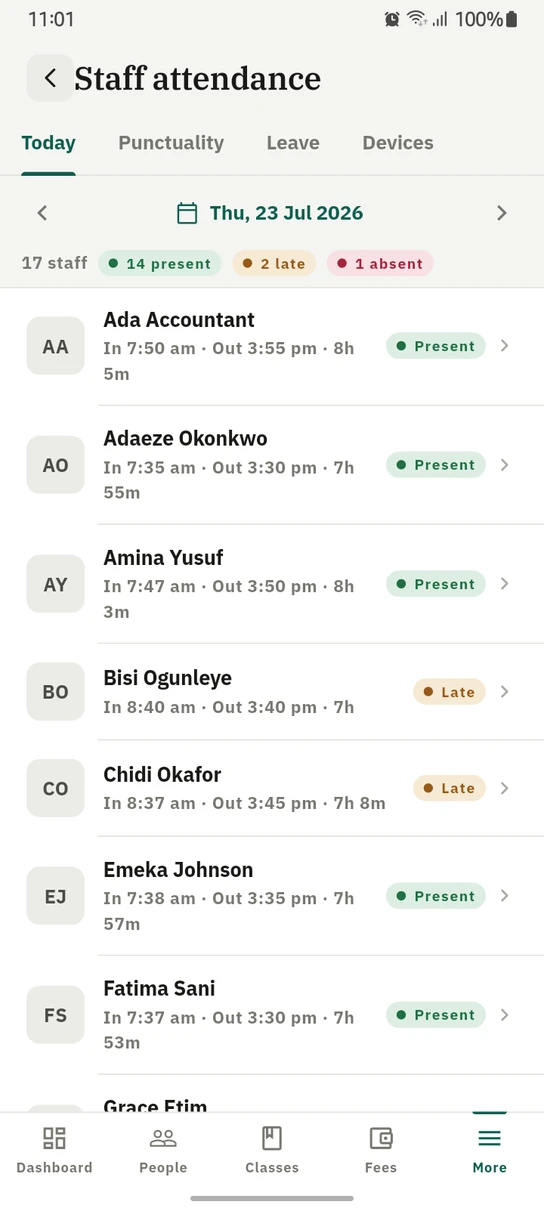
One day's board: who was in, when, and for how long.
What is not here yet
- A kiosk screen. Clocking in works with no hardware at all, and staff with no phone are covered by the roll call. A screen at reception showing a rotating code, so those staff could clock themselves in rather than being ticked off by somebody else, is planned and optional.
- Cover. The platform records who is away; it does not yet reassign their lessons.
- Shift patterns and entitlement balances. Both belong to workforce management rather than to attendance, and are on the roadmap as their own module.
Ready to try it with your school?
Three-month Basic trial. No card required to register.