
Academics
School Report Cards
Configurable report cards carrying your own assessment columns, class statistics, term-on-term history, attendance, psychomotor and behavioural ratings, remarks and a school-generated PDF.
A complete, printable report card for every student, covering the assessment breakdown, class statistics, term-on-term history, attendance, skills and behaviour, remarks and the next resumption date. Every part of it is configured by your school, not by us.
Finding a report card
There is a dedicated Report Cards page in the main menu, and everything a school does with report cards lives on it, in six tabs: Report Cards to find a pupil's card, Broadsheet for the class master sheet, Publish to release a term to families, Designer to design the card itself, Skills & Traits for the catalogue teachers rate against, and Scales for the grade scale, the rating scale and the trait grid headings. Class teachers see the first three; the last three need the Manage report card configuration permission, and releasing a term needs Publish report cards.
The first tab lists your students, filtered by class, term and session, and each row carries a View report card button that opens that student's card for the period you selected. It is simply a faster way to reach report cards; you can still open a card straight from a student's profile as before, and everything about the card itself is unchanged. A report card is the class teacher's document, so a teacher sees the class they are the class teacher of and picks between them if they run two; administrators see the whole school. The class filter offers standard classes only, because early years classes have no report card of this kind and are assessed on the Early Years page instead.
A teacher who runs no class of their own does not see the Report Cards page at all. That is not a setting: the Class Teacher role follows the class you assign them under Classes, so giving a teacher a class gives them its report cards, and taking the class away takes them back. If you want a member of staff, an exams officer or a head of year, say, to work on cards for classes they do not teach, grant them View report cards school-wide on the Roles page.
You can also generate a whole class's report cards at once: pick the class plus a term and session, and click Generate class PDFs. This runs in the background and downloads a single ZIP file containing every pupil's report card once it is ready. This is what you want at the end of term when printing for a class. A class is required, and it is one of the classes you may open cards for.
What is on the card
- A row per subject, showing each assessment your school scores (Assignment, Class Test, Exam, Practical, or whatever you have configured), the term total, the letter grade and its remark. A subject still incomplete (the CA recorded, the exam not yet) shows what has been entered and no letter. Where your card prints the Remark column it also carries the note "Incomplete: 40 of 100 marks entered"; where it does not, the row carries a short Inc. tag instead, so the reason is on the card either way. No overall grade is printed while any subject is incomplete, and the head of school's automatic comment is withheld for the same reason. The average and the position are still printed.
- The highest and lowest score in the class for that subject this term, so a parent can see where their child sits. Incomplete marks drop out of those two figures, and out of the class average, as soon as any pupil's mark in that subject is complete, since part of a paper and all of one are not comparable.
- The student's overall average across every subject and term completed so far, computed the same way for every student and never typed in by hand.
- The student's position in class, if you want it: written as 1st, 2nd, 3rd with the size of the class in the label beneath it, on the summary bar under the subject table. It is off until you turn on Show position in class under Report Cards → Designer → Subject Results, so a school that does not rank children has nothing to do. Like the average, it is computed the same way for every student and never typed in by hand.
- The class average in each subject, if you want it: a column of the mean the whole class scored in that subject this term. It is off until you turn it on, under Report Cards → Designer → Subject Results. The card prints no single class average for the term as a whole; that figure belongs to the broadsheet, which is the document about the class rather than about one child.
- The student's position in each subject, if you want it: a column reading 1st, 2nd, 3rd against each subject row. This is a separate switch from the position in class, so you can print either, both or neither. It is off until you turn on Show position in each subject, under Report Cards → Designer → Subject Results. Pupils on the same mark share a place, and a subject is ranked among the pupils marked in that subject rather than the whole class, so an elective taken by nine children ranks those nine.
- Every earlier term of the session, from the second term onwards, alongside the student's running average across the terms completed so far. This works for however many terms your school runs, and three is not assumed.
- An attendance summary: days the school opened, and days present, late, absent and excused.
- Psychomotor skills and behavioural traits, each rated on your school's own scale and printed under your school's own heading for them. Only the skills a teacher actually rated are printed. An unrated skill is left off the card rather than printed with a dash against it.
- The class teacher's and head of school's remarks, your grading scale, and the date students resume next term.
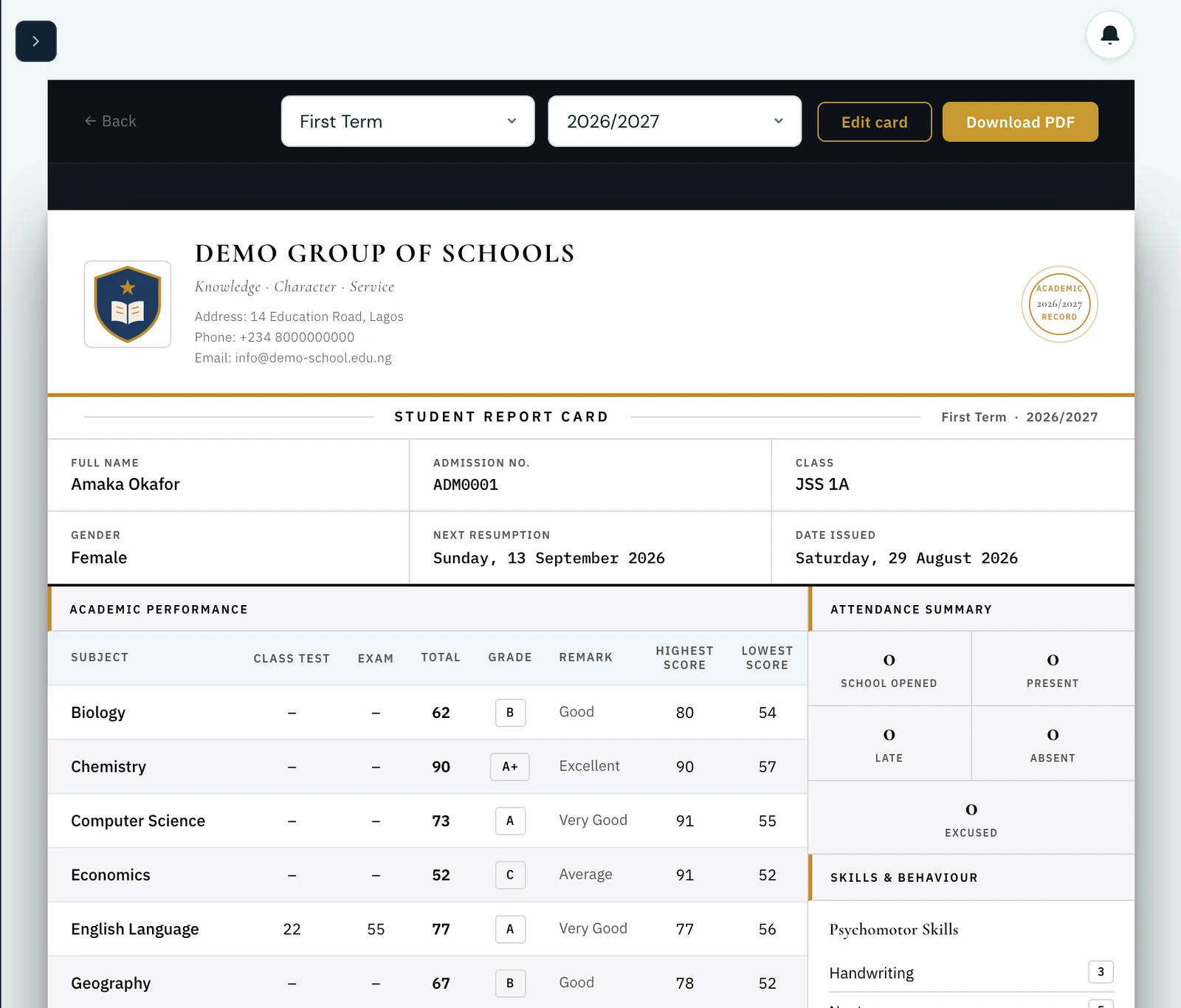
A report card as a student sees it. The same document is what the school prints and the parent downloads.
Assessment columns appear only when they are used
The card shows the assessments your school actually scored. If nobody in the class was given a Practical mark this term, no Practical column is printed. There are never empty columns to explain away. Your assessments are the parts of your assessment structures; they become the card's columns automatically.
The order of a structure's parts is the order their columns appear in on the report card, so "CA1, CA2, Exam" reads the way your school teaches it rather than alphabetically. Reorder or rename the parts at any time and every card follows; see naming parts and ordering columns.
Recording a report card
Open a student's Report Card, either from the Report Cards page or from their profile, and click Edit card. You never type into the report card itself. Everything is recorded in the drawer that slides in:
- Attendance summary. The figures come from the attendance register automatically. Enter a number to state it explicitly instead; clear it to hand it back to the register.
- Psychomotor and behavioural ratings. Tap a level for each skill or trait. Only the skills, traits and levels your school has configured are offered.
- Remarks. Class teachers write the class teacher's remark; the head of school's remark is an administrator's to write.
- Next resumption date. See below.
Nothing is saved until you click Save changes. The report card behind the drawer then updates immediately from the saved copy. If you close the drawer with work outstanding, you are asked before anything is discarded.
Releasing cards to families
A finished card is not automatically a card a parent can open. Report cards stay inside the school until you release the term, under Report Cards → Publish. Staff read and correct them as usual in the meantime, and families are told the card is not out yet. See publishing report cards.
The broadsheet
A report card answers about one child. The broadsheet answers about the class: every pupil a row, every subject a column, with totals, averages and positions, on the card's own rules so the two can never disagree. Open Report Cards → Broadsheet, or read the class broadsheet guide.
Default comments from the head of school
The head of school's remark can be written once per band of results rather than four hundred times, and offered on every card whose overall average falls in that band. It is a suggestion rather than an entry, so anything written for a particular pupil replaces it. Set them under Report Cards → Scales, or read the head of school comments guide.
Who signs the card
Each remark closes with a signature line, and the name above it is filled in for you. The class teacher's line carries the teacher assigned to that class under Classes; the head of school's line carries the name you set in Settings → General → Head of School. Set the head's name once and every report card, on screen and in the PDF, is endorsed with it. A class with no teacher assigned, or a school that has not named its head, simply prints an empty line to sign over.
The resumption date, entered once
Enter the next resumption date on any one student's card and it becomes the default for that term. Every other student in the same session picks it up without anyone typing it again. Enter a different date later and that becomes the default from then on. Dates never cross between schools.
How the card is laid out
The subject table, the term summary and the remarks run down the main column, with the attendance summary and the ratings alongside them and the grading scale across the foot of the card. A normal report card therefore prints on a single page.
Configuring skills, traits and the rating scale
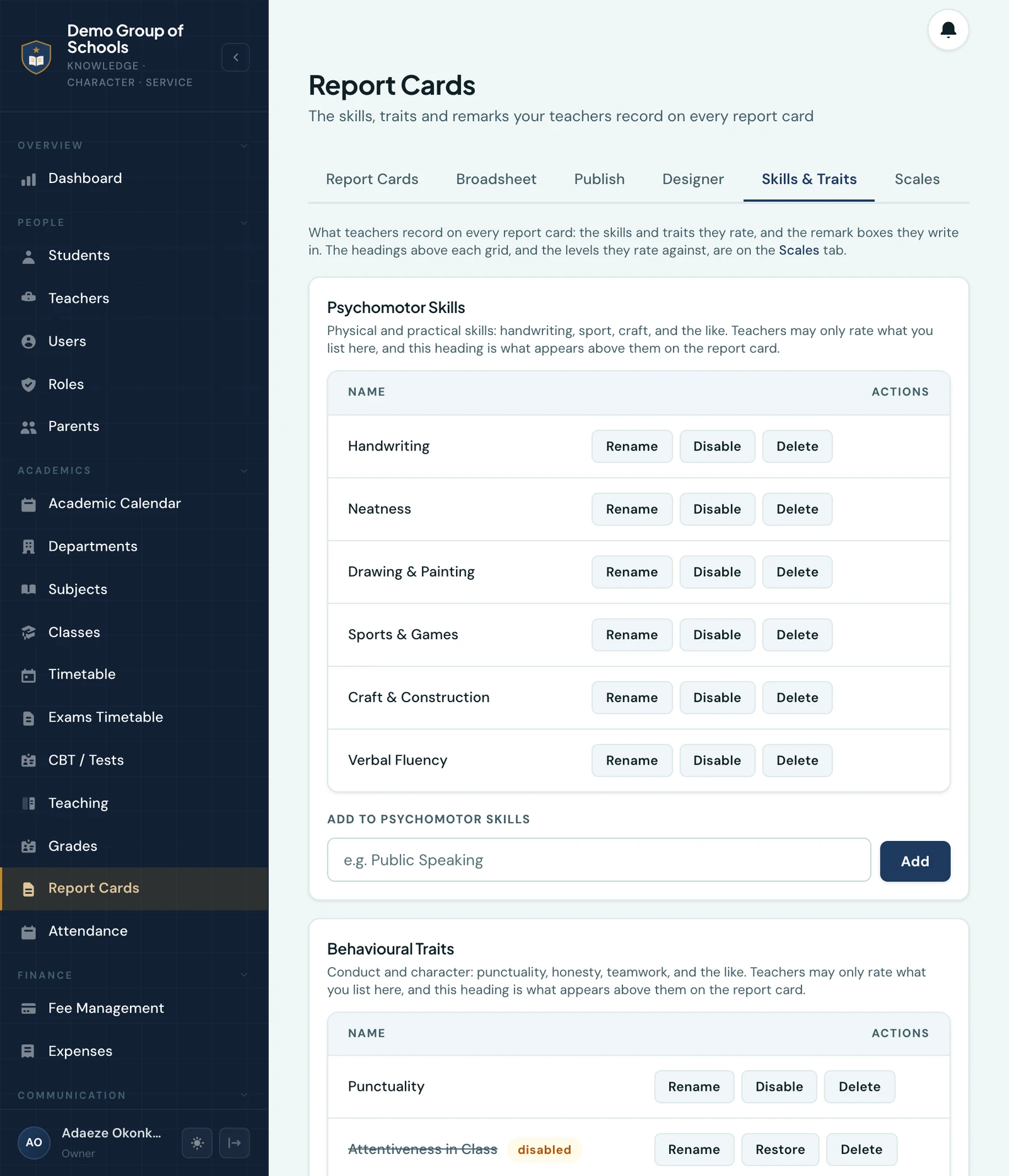
Go to Report Cards and open the Skills & Traits tab (admins only) to manage the trait catalogue. Every school starts with a sensible set of psychomotor skills (Handwriting, Neatness, Sports & Games …) and behavioural traits (Punctuality, Honesty, Teamwork …). Rename them or add your own. Teachers can only ever rate what you list here. A skill that has already been rated on a card cannot be deleted; disable it instead, and past cards keep their meaning.
The scales themselves are on the Scales tab beside it, and on the Settings page under Academics and Report Cards. Both are the same settings: whichever you open, you are editing one value, and a change made in one place is already made in the other.
The tab holds four things. The grade scale is the score bands that become a letter grade and a remark on every subject line, shared with the grades pages. The rating scale is what teachers choose from when rating skills and traits: replace the default five-point scale (Excellent, Very Good, Good, Fair, Poor) entirely with letters or numbers if you prefer. The headings rename the two grids to whatever your report cards have always called them, whether that is "Practical Skills", "Affective Domain" or "Conduct". That heading is what prints above the ratings on the card, on the PDF and in the mobile app. Renaming a section changes only the words: every rating already recorded stays exactly where it is. The fourth is the head of school's default remarks, banded on the overall percentage, which are covered above.
Term names
Schools that do not call their terms "First Term" can set an alias under Academic Setup, such as "Michaelmas", "Rain Term" or "Semester One". The alias is what appears on report cards, in the portals, on PDFs, in exports and in the mobile app.
Downloading and sharing
The PDF is generated by 1410SMS itself, so the copy a school prints, the copy a student downloads and the copy a parent shares from their phone are the same document. Staff download it from the report card page; students and parents download it from their portals, and parents can share it straight from the mobile app.
On the phone
The mobile app carries the directory and the card. More → Report Cards lists every pupil with their admission number, class and, where they have been invoiced, their fee standing, searchable and filterable; tapping one opens that pupil's card for a chosen term and session, with Share PDF to send the document itself. The broadsheet is one tap away in the corner, and a class teacher sees the pupils of their own class exactly as they do on the web.
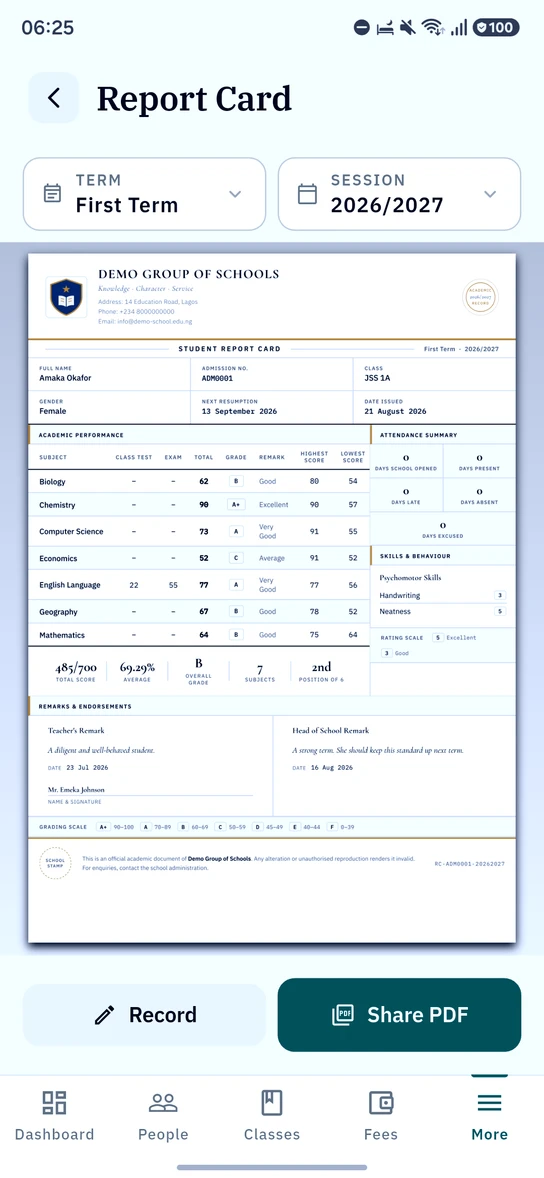
The card itself on the phone, drawn from the same assembled sheet the printed PDF uses. Share PDF sends the printable copy.
Who can see what
- Admins. Every student's card, and the head of school's remark.
- Class teachers. The cards of the students in the class they run, and nothing else. A teacher who runs no class does not see report cards, and a teacher who teaches a subject in another class does not see that class's cards. Either can be granted View report cards school-wide on the Roles page.
- Students. Their own card, read-only.
- Parents. Their children's cards, read-only.
Reception and playgroup pupils are assessed developmentally instead. See Early Years Assessment.
Ready to try it with your school?
Three-month Basic trial. No card required to register.