
Finance
Expenses
Record what your school spends, file it against a category and a supplier, and see where the money went. Its own workspace, separate from fees.
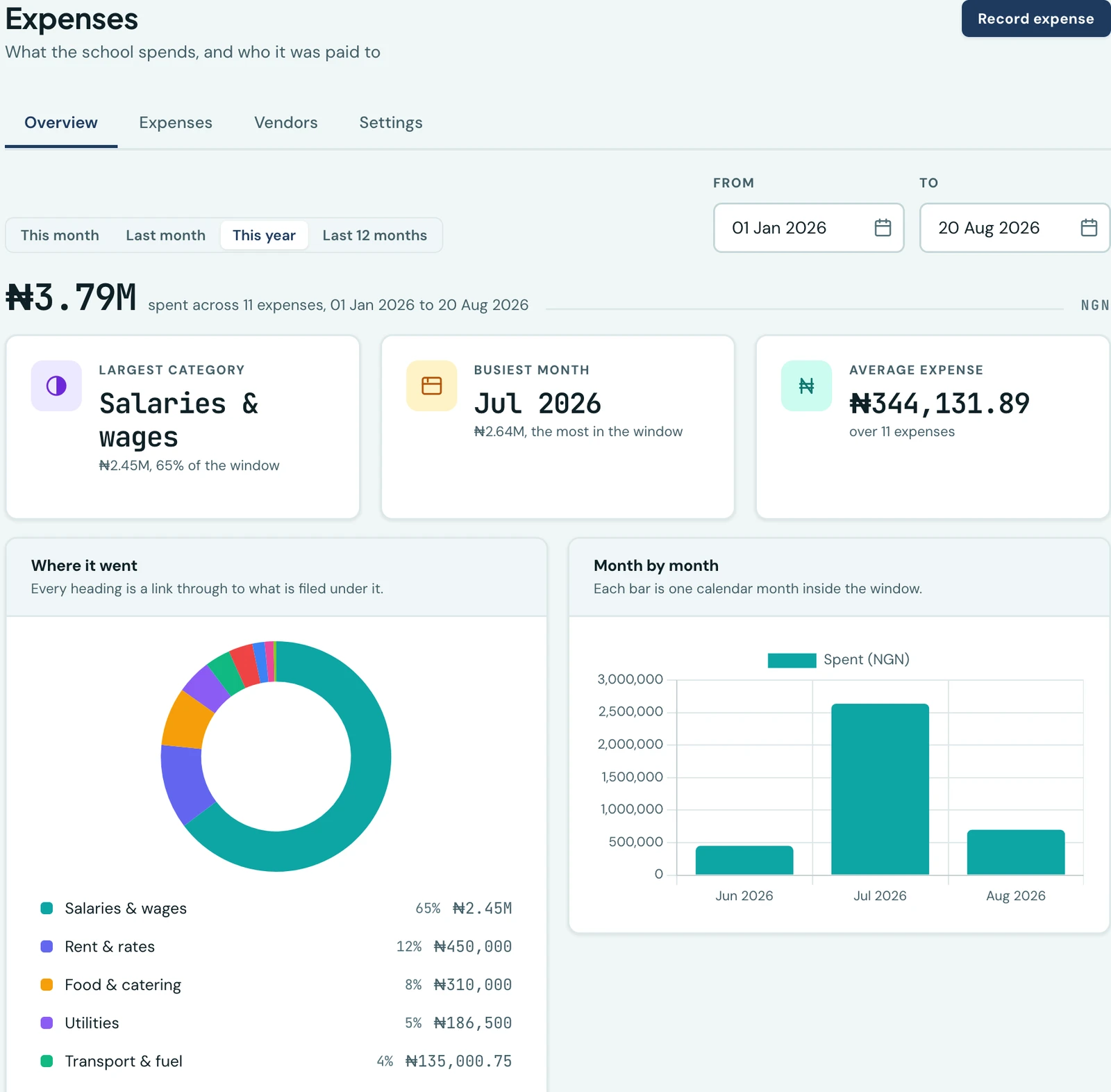
Fees are the money coming in. Expenses are the money going out: the diesel, the rent, the salaries, the plumber. They live in their own workspace under Finance → Expenses, and are deliberately kept apart from invoicing, because what a school spends is a different set of questions from what it bills.
Recording an expense
Record expense opens a form that asks for six things, and only two of them are unusual:
- Date: when the money actually moved, which is not always today. A date in the future is refused: money that has not moved is not an expense yet.
- Amount and currency. Leave the currency alone and your school's own is used.
- Category: what kind of spend this is. Your school starts with twelve.
- Description: what the money was for, in your own words. This is the line you will be reading back in six months, so it is worth a few more characters than "fuel".
- Paid to: the supplier. Type a name and one is created for you if it is new; start typing an existing one and it is offered. You can leave it empty for spend with no supplier.
- Paid by: cash, bank transfer, POS, cheque, card, mobile money, USSD or other. This is the same list the fee-payment and refund forms offer, because how money moved is one question wherever it is asked. For anything but cash and other you can name which of your school's accounts it left.
You can attach a photograph or PDF of the invoice or receipt. It is stored privately and is never served on a public link, because a supplier's invoice usually carries their bank details.
Each expense gets a voucher number of its own (EXP-00001), running in its own sequence, in the
same style as your invoice and receipt numbers.
Correcting a mistake
You can edit an expense for a day after recording it. That window covers the ordinary case: a typo in the amount or the date, caught the same afternoon or the next morning.
After that, correcting it is void and re-enter. Voiding keeps the voucher number and leaves the entry on the record with the reason you gave, but it stops counting towards every total. A reason is required, because "we voided this" with no explanation is the note that costs somebody an afternoon a year later.
Voided entries are hidden from the list until you tick Show voided in the filter.
Nothing is ever deleted. The one thing an expense will not let you do is quietly restate last term's books.
The payment voucher
Every expense prints as a payment voucher: one expense on one page, carrying the voucher number, the date, who was paid, what it was for, which of your accounts it left, the amount in figures and in words, and ruled lines for prepared by, authorised by and received by. It is the document a school office already keeps by hand, in your school's own colours and letterhead.
Download it from the row menu on the Expenses tab, or from the expense itself.
The amount in words is written in English, naming the currency as the standard names it, with any kobo or cents left in figures: Four hundred and fifty thousand Nigerian Naira and 50/100 only. On the rare currency we cannot write honestly, the line is left off rather than guessed, because words that disagree with the figures beside them are the one thing a voucher exists to prevent.
A voided expense has no voucher. The entry stays on the record, but a document an office files and pays against must not print as though nothing had happened.
Finding what you spent
The Expenses tab is the full list, newest first, searchable by voucher number, description, supplier or payment reference. Filter narrows it by category, supplier, payment method, currency or a date window.
Whatever you have narrowed it to is then named on the page, one chip per filter, each with an x that drops that one and leaves the rest. So a list that is missing a row you expected explains itself where you are looking, rather than behind a button counting to three.
Export CSV downloads the whole filtered list, not the page you are looking at. The filters on screen are exactly the filters in the file, so a narrowed list can never produce a spreadsheet of everything.
Overview
The Overview tab answers "where did it go" for a window you choose.
Pick the window with one press. This month, Last month, This year and Last 12 months are the four questions actually asked of a spending record, and each is a button. The From and To fields are still there for anything else, such as closing off a single month for your auditor; typing in them turns the buttons off, because a window nobody chose from the row is not one of them.
Under the window, one band per currency:
- The headline: what was spent, across how many entries, over which dates.
- Three figures worth knowing: your largest category and what share of the window it took, the month with the most in it, and the average expense.
- Where it went, as a doughnut with a ranked breakdown beside it giving every heading its share and its amount. Every line is a link through to the expenses filed under that heading.
- Month by month, so a month that was twice the usual is visible rather than buried.
A chart is only drawn where there is something to compare. One category, or one month, is already stated in the figures above, and a doughnut of a single wedge tells nobody anything.
Latest expenses closes the tab with the five most recently recorded, whatever window is set above. Tap one to open it in full.
Currencies are never added together. If you spend in more than one, each gets its own band, largest first, the same rule the rest of Finance follows.
Suppliers
The Vendors tab is the list of everyone you have paid, with how many expenses are filed against each. You do not have to set it up in advance: a supplier is created the first time you type their name on an expense. Edit one to add a phone number or an email.
A supplier with expenses filed against it cannot be deleted, since that would orphan the history. Disable it instead: it keeps everything already filed against it and stops being offered on new expenses.
Categories
The Settings tab holds the category list. Your school is provisioned with twelve to start: salaries and wages, rent and rates, utilities, maintenance and repairs, teaching materials, office and stationery, transport and fuel, food and catering, marketing, professional fees, bank charges, and other.
None of them is special. Rename them to match what your school actually calls things, reorder them so the ones you use most are at the top of the dropdown, disable the ones you do not use, and add your own.
Like suppliers, a category with expenses filed under it cannot be deleted, only disabled.
Who can see it
What a school spends is not something every member of staff should read: it includes the salary bill, the rent, and what the proprietor pays themselves. It is its own set of permissions for that reason, so you can hand out the parts of it you mean to.
| Permission | What it allows |
|---|---|
| View expenses | Open the workspace, read the list, the overview and the suppliers |
| Record expenses | Add one, and edit your own inside the correction window |
| Void expenses | Void one, with a reason |
| Manage expenses | Add and edit categories and suppliers |
| Export expenses | Download the list as a CSV |
Out of the box, the Owner and the School Administrator hold all five, and the Accountant holds view, record and export: recording what was spent is the bursar's job, while voiding an entry and deciding what the categories are belong to whoever the books answer to. Teachers and every other role hold none of them.
If your school keeps its spending closer than that, take the keys off School Administrator under Roles. That is one edit, and it applies to everybody holding the role.
On the phone
The mobile app carries the whole of this, for the schools that never open the web client at all. Open More → Expenses and you get two tabs.
Entries is the list: what the filtered window comes to per currency, the filters, the search and the CSV export. Tapping a row opens it in full, with its payment voucher, its receipt, and whichever of edit, attach and void your permissions allow.
Overview is the same window totalled, by category and then by month, heaviest category first. It is the report rather than a second list, and it answers exactly the window Entries is showing: narrow the filter on either tab and both follow, because a report and a list that disagree about which expenses they are describing are worse than one of them not existing.
Recording is where the phone earns its place. Record opens one form, and the receipt can be photographed on the spot rather than kept in a pocket until you are back at a computer. Photographs are scaled down before they are sent, so a receipt goes up on a school's connection rather than timing out; a supplier's emailed PDF can be attached from the phone's files instead.
The catalogues, on the phone
The three-dot menu on the Expenses screen opens Categories and Suppliers, the same two catalogues the web workspace keeps, and it appears only for somebody holding Manage catalogues. They are in the menu rather than in the tab strip on purpose: a school sets its categories up a few times a year and opens its expense list every day, and a tab would make the rare thing as prominent as the constant one.
Both work the same way. Add one, edit it, or disable it, which stops it being offered on new expenses while leaving every expense already filed under it exactly as it was. Delete is offered only where nothing is filed under it at all, because that is the only case the platform will actually allow, and a Delete button that answers with a refusal is a button that lies.
A category matters more than it sounds: every expense must have one, so a school with no way to add one on the phone was stuck with the twelve it started with. A supplier is optional, and a name you have never paid before is still simply typed into Paid to on the record form, which creates it, so nothing about being on a phone sends you back to a desk mid-payment. The catalogue screen is for correcting a misspelt name, disabling a supplier you have stopped using, or keeping a number to ring before the next payment.
Where expenses stop
This is a spending record, not a purchasing system. There are no purchase orders, no approval queues, and no budgets: an approval step assumes a second person to do the approving, which most schools asking for this do not have, and a workflow nobody uses is worse than no workflow.
The one place expenses meet the rest of Finance is the cash-flow statement, whose Spent column is this module's figure and whose Net is what you kept: collected, less refunds, less spend. That is also why a month with a salary bill in it often shows a negative net, which is the honest answer rather than a fault.
Your dashboard carries a Spend this month card, per currency, for anyone with permission to view expenses. It counts the calendar month rather than the academic term the rest of the row is scoped to: rent, salaries and diesel are monthly commitments, and a term is three of them.
Salaries are recorded here as an amount under Salaries & wages. A per-member-of-staff payroll breakdown is a different thing and is not part of this.
Ready to try it with your school?
Three-month Basic trial. No card required to register.