
School Setup
Your Sign-in Page
Your school's sign-in pages show your crest, name and motto over a large photo, in one of two layouts, work in light or dark, and can show a photo of your own school instead of ours.
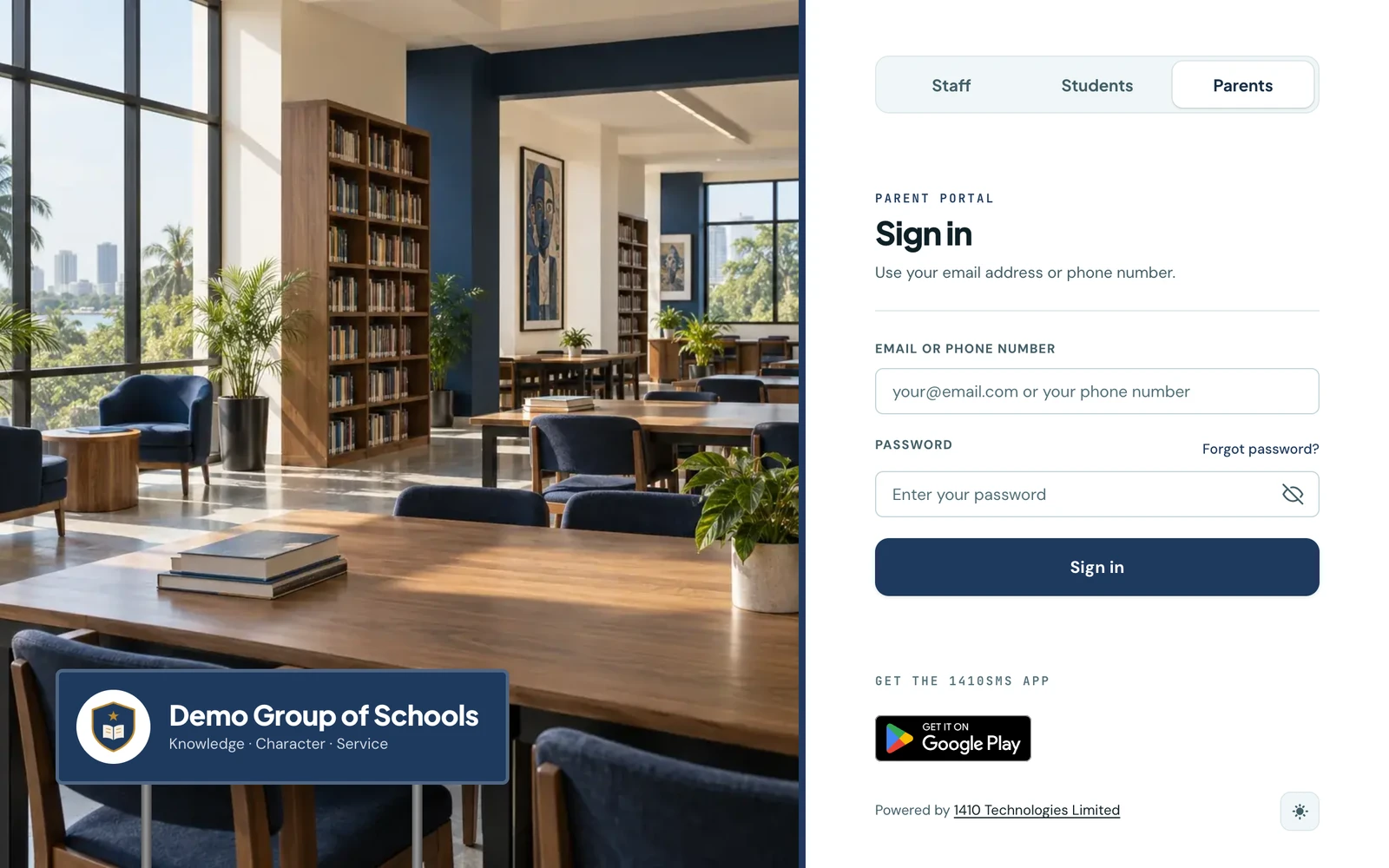
The sign-in pages are the pages your parents, pupils and staff see most often. On your school's own address they carry your identity: your crest, your name and motto, your colours, and a large photo.
At the top of every sign-in form is a Staff, Students and Parents switch, with the page you are on pressed in. A parent who has landed on the staff page sees at once where to go instead.
Two layouts
Your sign-in pages come in two layouts:
- Signboard. The photo runs down the left of the page, and your crest, name and motto stand on a signboard in your school colour at its foot, like the board at a school gate. The form sits beside it on the plain page.
- Floating card. The photo fills the whole page, your crest and name sit on it as a caption, and the form floats over it in a card.
Unless you choose one, each visitor is shown one of the two at random, and their browser keeps it, so the page looks the same every time they come back. To use one layout for everybody, choose it under Settings → Brand Colours → Sign-in page → Layout. The change is recorded in your audit log.
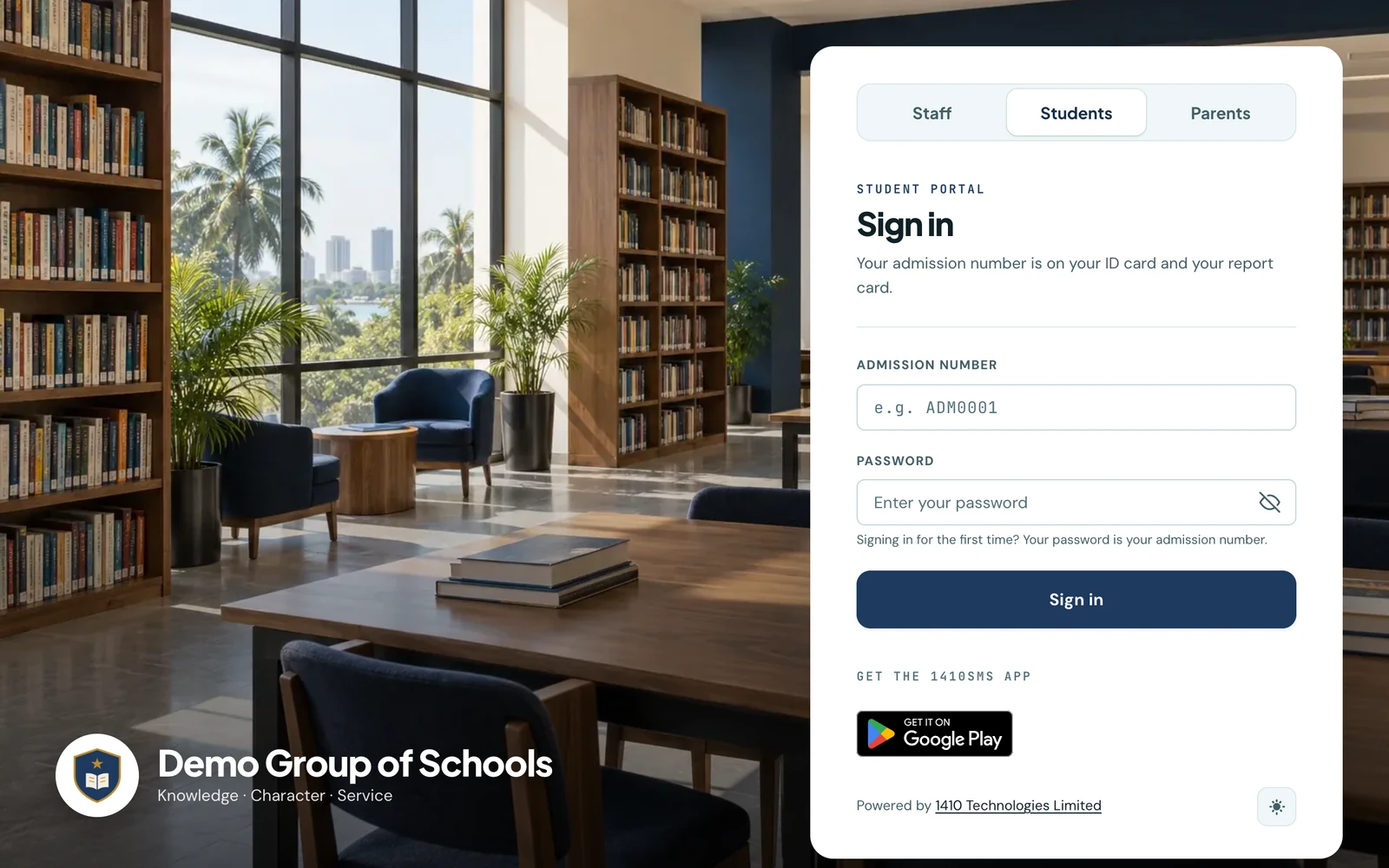
The student sign-in page in the floating card layout.
On a phone, both layouts put the photo in a band across the top, with your name on it, and the form below.
The default photo
Until you choose a photo of your own, every sign-in page shows ours: a school library in the morning sun, with wooden reading tables, navy chairs and full bookshelves. Staff, students, parents and entrance-exam candidates all see the same photo, and so do the password pages (forgot password and its reset, setting a password from an invitation, and a pupil's first password change).
A photo of your own replaces it on every one of those pages.
Light and dark
The sign-in pages have the same light and dark switch as the rest of the portal, at the foot of the form beside the 1410SMS credit, so anyone can choose before signing in. The choice is remembered on that device and carries on into the portal. In dark mode the photo is toned down a little so it does not glare beside the dark form; it is otherwise shown as it is.
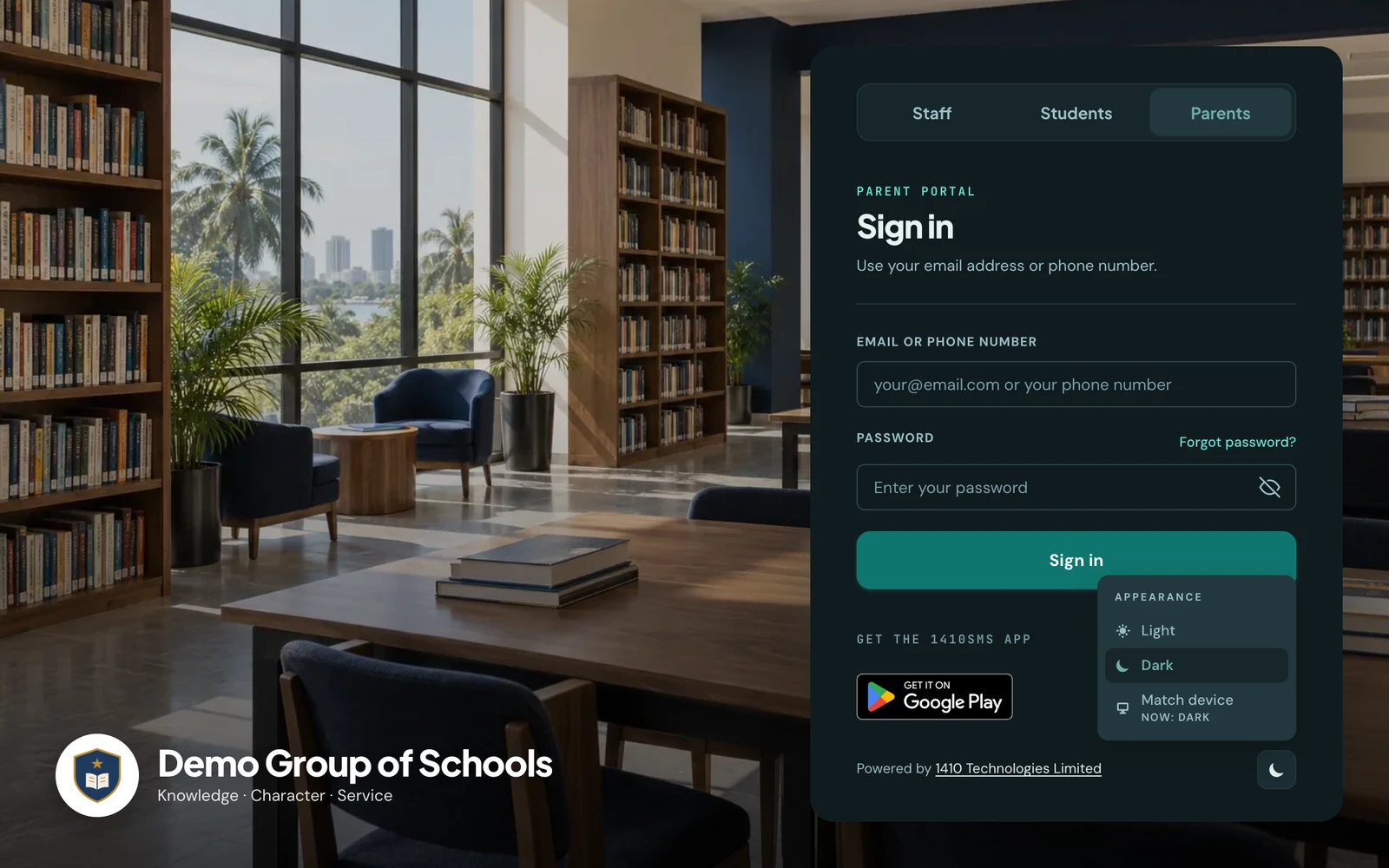
The parent sign-in page in dark mode, with the appearance menu open at the foot of the form.
Using a photo of your own school
Anyone who can change your logo can set the photo, under Settings → Brand Colours → Sign-in page.
- Choose Use our own photo. Landscape photos at least 1200 pixels across look sharpest. Buildings, grounds, classrooms and the library work best. A panorama is refused: the photo can be up to about two and a half times as wide as it is tall.
- Tick the box confirming that anyone who can be recognised in the photo, or their parent, has agreed to it appearing on a public page. The upload is refused without it, and the confirmation is recorded in your audit log.
- Select Upload photo, then check the previews. Click the part of the photo that should always stay in view, such as your front entrance, and every crop keeps it.
Your photo replaces the default on every sign-in and password page. Replace photo swaps it for another, and Remove photo goes back to the default.
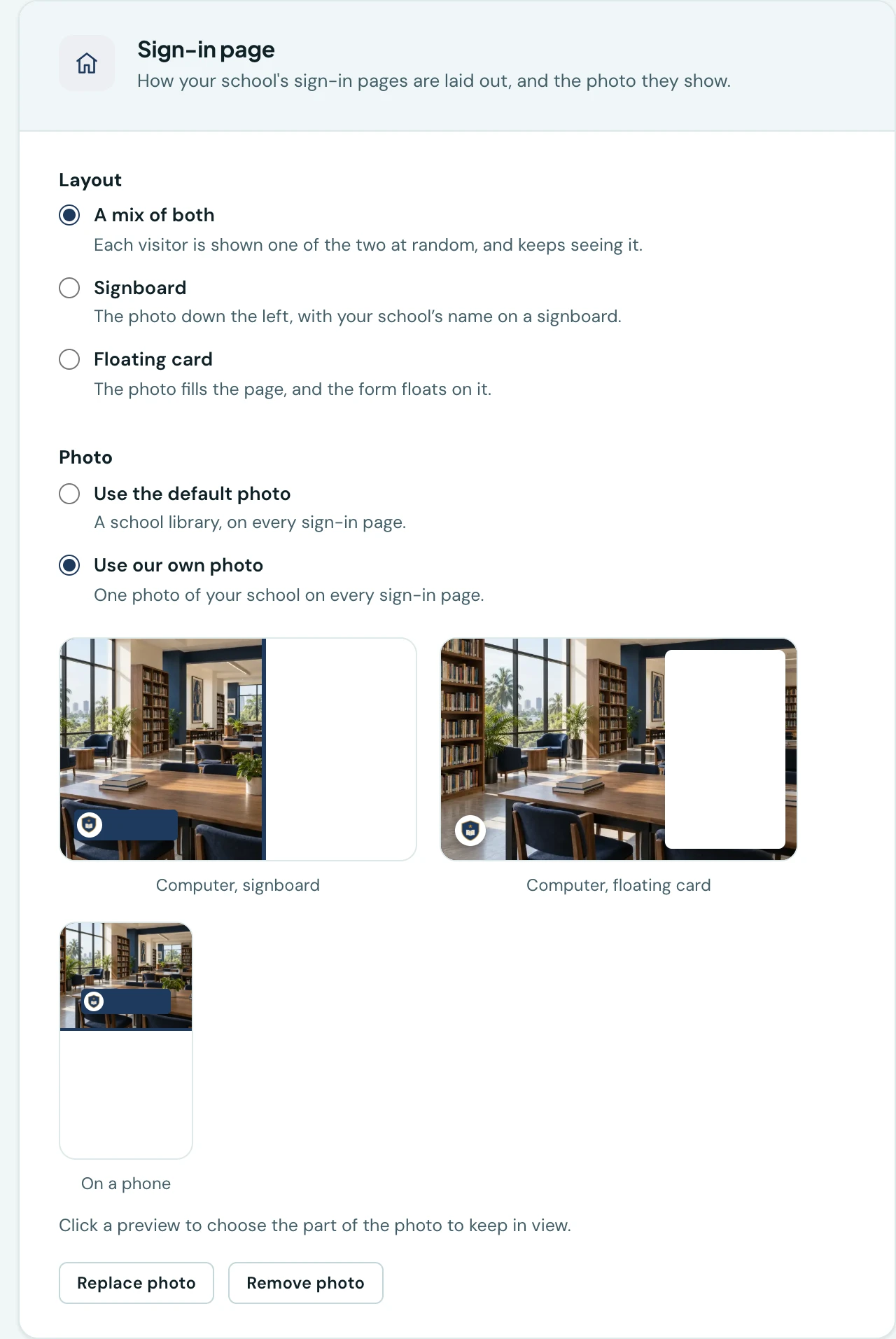
The sign-in page settings, with a preview of each layout on a computer and of the phone band.
When you choose a single layout, the previews show only that one.
What happens to the photo
- Location data and everything else a camera stores in a photo are removed before it is saved, so a photo taken on a phone does not reveal where it was taken.
- It is saved in two sizes, a smaller one for phones, so it loads quickly on a slow connection. The sign-in form appears first and the photo follows.
- Phones with data saver switched on show your school colour instead of the photo.
- 1410SMS can remove a photo from a school's sign-in page if it is reported to us.
When you share your portal link
When you send your portal address on WhatsApp or another app that shows link previews, the preview uses your photo as a wide card, cropped around the point you chose. Without a photo of your own, the preview shows your crest, as it always has.
Available on
Every plan, the free plan included.
Related: Profile & Branding, Appearance & Dark Mode, Custom Domain, Password Reset.
Ready to try it with your school?
Three-month Basic trial. No card required to register.