
Academics
Online Lesson Links
Add a meeting link to a timetable lesson so teachers, pupils and parents can open it from the published week.
An online lesson can carry a meeting link from the service your school uses. Paste an HTTPS link, including a Meet, Zoom or Teams link, without connecting a provider account.
Add a link while building the week
A staff member with timetable management permission opens the lesson in a draft and fills in Online lesson link (optional). Save and publish the week as usual. Moving a lesson or copying a timetable preserves its link.
Change a link on the published week
A link can change without re-drafting the week. A staff member with timetable management permission opens Timetable, goes to the Builder tab with the published version selected, and opens the lesson. Every other field stays read-only, but Online lesson link can be edited. Paste the new link and select Save link, or clear the field and save to remove it. The change reaches teachers, pupils and parents straight away, and the week stays published.
Timetable managers can change the link on any published lesson in the school. A teacher can change only the links on lessons assigned to them (see below). An archived week cannot be changed.
Teachers manage their own links
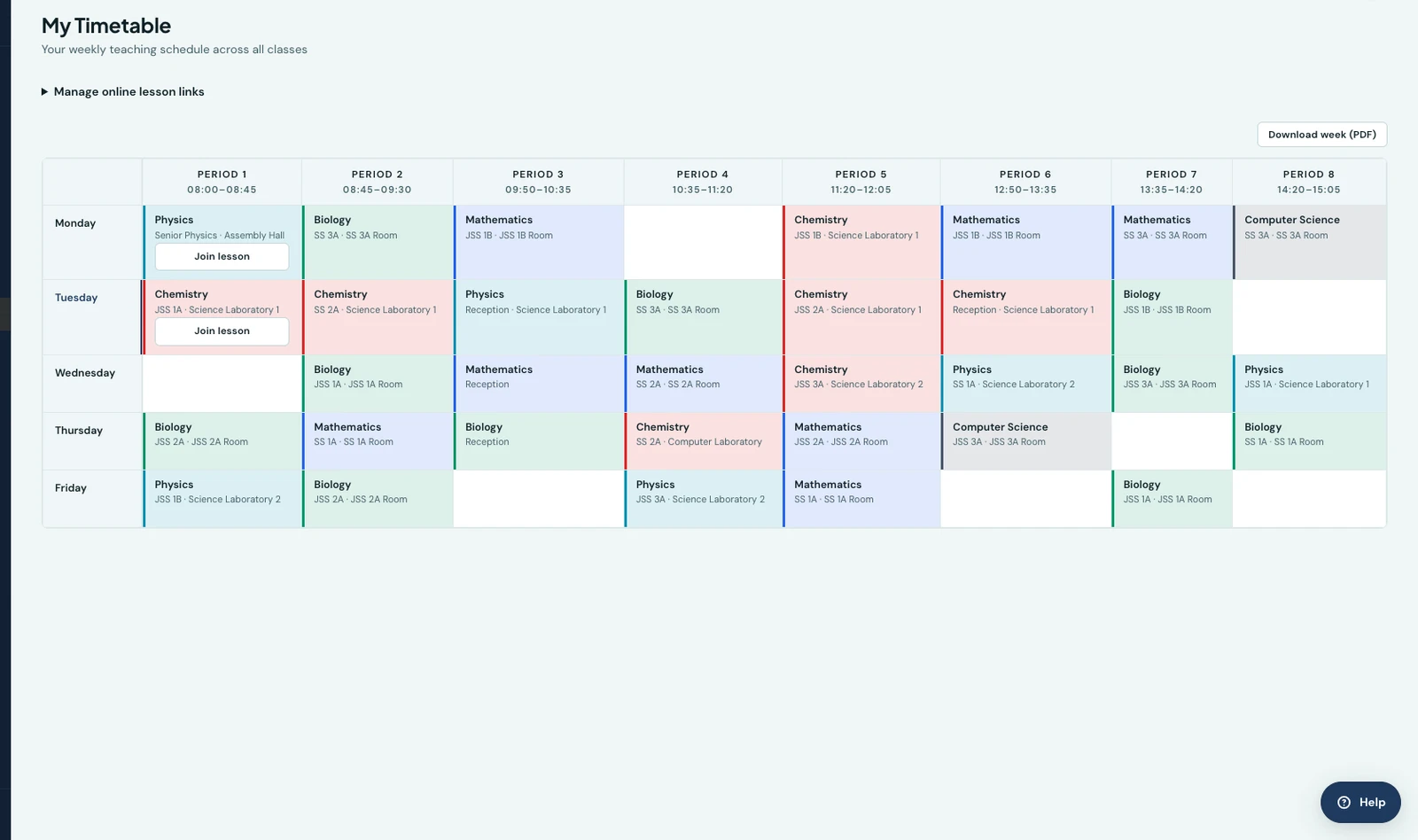
On My Timetable, open Manage online lesson links, find the lesson, and select Add link
or Edit link. Paste the meeting URL and select Save link. Leave the field blank to remove it.
A link must start with https:// and carry no username or password; anything else is refused on
the field before it is sent.
This action requires Manage own lesson links, granted to the teaching roles by default and controlled on the Roles page. It applies only to published lessons assigned to the teacher. It lets a teacher change the link without changing the class, teacher, room or time.
Every change is in the audit log
Each change to a published lesson's link is recorded in the school's Audit Log, whether a timetable manager or the lesson's own teacher made it. The entry names the lesson and who made the change. It shows the old link and the new one, and whether the change was made as the lesson's teacher or as a timetable manager. A removed link shows as empty. To see only these entries, filter the log by Timetable Lesson.
Join from the timetable
Teachers, pupils and linked parents see Join lesson on lessons that have a link, on the web and in the mobile app. Parents open their child's timetable. The existing class, stream and teaching-group rules decide which lessons, and therefore which links, each reader can see.
The web opens the meeting in a new tab. The mobile app opens it in an external app or browser. A link is reused every week that the timetable applies, so use a reusable meeting link or update it before the next lesson.
This feature shares a link. The meeting service controls admission to the meeting. It does not create meetings, record attendance or add links to exam sittings or lesson reminders.
On the phone
Open My Timetable and tap Online lesson links above the week to open the list of lessons you teach. Tap Add link or Edit link beside a lesson, enter the HTTPS link and tap Save link. Leave the field blank and save to remove it. The school's permission and the lesson's assignment apply in the app too.
Pupils open their timetable and tap Join lesson. Parents open the child's timetable and use the same action. The meeting opens in an external app or browser.
Ready to try it with your school?
Three-month Basic trial. No card required to register.