
Academics
The Exams Workspace
Everything an exam series needs on one screen: the list, the builder with its generation wizard, the printed sheets, and the settings that decide how a generated timetable comes out.
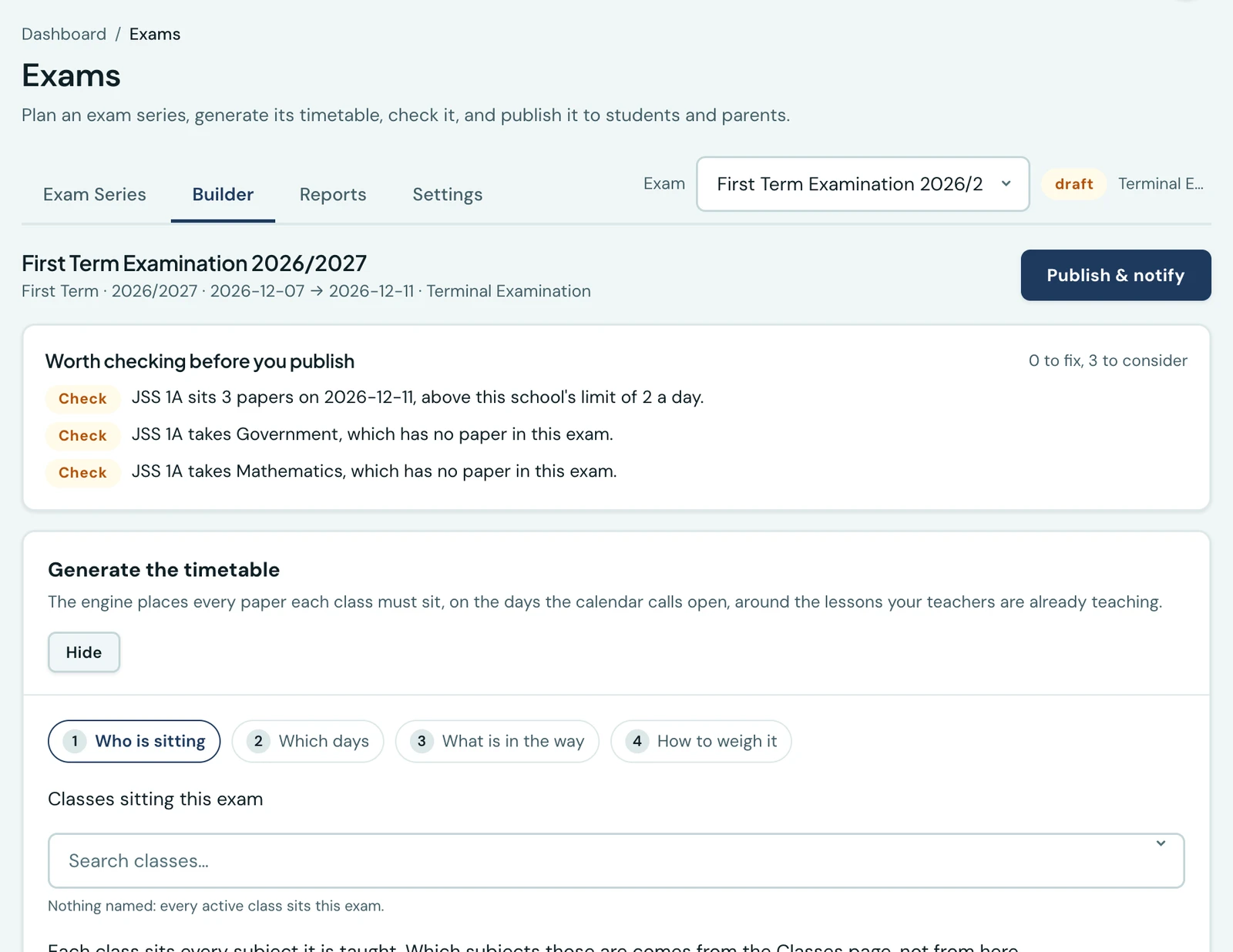
An exam series is one whole round of exams: a named, dated set of papers your school sits together, like "First Term Examination 2026/2027".
Exams used to be three screens that never met: a list of series, a page for one of them, and generation inside a drawer on that page. The settings that decide how a generated timetable comes out were on a different page again. Nothing was missing. What was missing was a place where the whole job lived.
Exams is now one workspace with four tabs. The exam chosen on the tab row is the one the Builder edits and the Reports tab prints, so choosing it once is enough.
Exam Series
Every series the school has run, with the filters and the CSV export the old list had, plus a summary strip and a filter on the new exam type. Creating a series, editing its dates, publishing it and taking it back down all happen here.
Opening a row puts that exam in hand and takes you to the Builder, which is what a row is for.
Builder
One series, and everything you do to it:
- What is wrong with it, from the same check that refuses a publish. Errors first, then the things merely worth a look. It is shown to whoever may publish, since it is the question asked on the way to publishing.
- The generation wizard, in four steps: who is sitting, which days, what is standing in the way, and how the engine should weigh what it cannot have both of. The readiness check runs as you reach step three, before anything is queued, because a run that works and then reports that the exam has no dates has taught you nothing you could not have been told first.
- The class-by-class grid, for a school that would rather type its timetable than generate it, and for correcting a generated one.
- The papers, grouped by the day they are sat.
Moving several papers at once
A paper is per class, so a whole year group sitting one paper in the hall is five rows, and moving them one at a time is five edits. Worse: a class sitting three days running, whose exam week slips a day, cannot be moved paper by paper at all. Each move is refused by the next paper along, which has not moved yet.
Tick the papers, or tick a whole day at its heading, and say either move by so many days or move to a date. The move is checked as a whole against how the week would look once it is applied, so the whole run shifts together. A published series still tells the families of every class whose paper moved, naming both the old slot and the new one.
Reports
The four documents a series gets asked for: a class's timetable, an invigilator's list, a room's day, and the attendance sheet a paper is registered on. Each picker offers only what actually exists in this series, so you are never given a sheet that prints empty.
A draft prints with a DRAFT stamp rather than being refused, because checking before publishing is when a school most wants the sheet.
Settings
The cap on how many papers a class sits in a day, and the exam-type catalogue. The shape a generated series should aim for is chosen under Settings → Examinations, as one named policy rather than six numbers.
These are the same settings rows the Settings page shows, editing the same values through the same endpoints with the same history. They are here as well because "why did it put three papers on Tuesday" is a question you ask while looking at Tuesday.
Exam types
Continuous Assessment, Mid-Term, Terminal, Mock, Entrance, Promotion, Practical and Oral are seeded for every school, and you can add your own. The type is a label: it prints on the timetable and appears in the notice families receive, and it changes nothing about how the timetable is built.
A type a series already carries cannot be deleted. Disable it instead, and it stops being offered on new ones while every series already labelled with it keeps its label.
Practicals and laboratories
If you have told the platform that a class's Chemistry needs a laboratory, under Timetable → Requirements, the exam generator now honours it: that paper goes in a laboratory or it is reported as unplaced, rather than being quietly put at a desk. A school with no laboratory at all is told before the run rather than after it, since that is fixed by adding a room and not by moving a paper.
Old links still work
/exams/:id now takes you to the Builder with that series in hand, so a bookmark or a link written
down in an email still lands where it meant to.
On the phone
Most of the workspace is on the mobile app, at More → Exams. The list shows every series, and its menu holds New exam series and Exam types, where a type can be renamed, disabled or restored. Tap a series to open its timetable, grouped by day. Its menu at the top right holds Edit series, Add a paper, Move papers (Shift by days or Move to a day, for several papers at once), Check this series and Publish. Print beside it produces the same sheets as the Reports tab: a class's papers, an invigilator's list, a room's day and an attendance sheet, and a teacher also gets their own invigilation duties.
The cap on papers a day and the generation policy are under More → Settings → Examinations. As on the web, the six weights appear only once the policy is Custom (set the weights myself).
The generation wizard, the class-by-class grid, the series list's filters and CSV export, and linking a paper to an online test are on the web only. Generate a series there, then check, adjust and publish it from the phone.
Ready to try it with your school?
Three-month Basic trial. No card required to register.