
Academics
Weekly Timetable
Build your school week from bell schedules, rooms and what each class needs of each subject, with a generator that places it all without a clash.
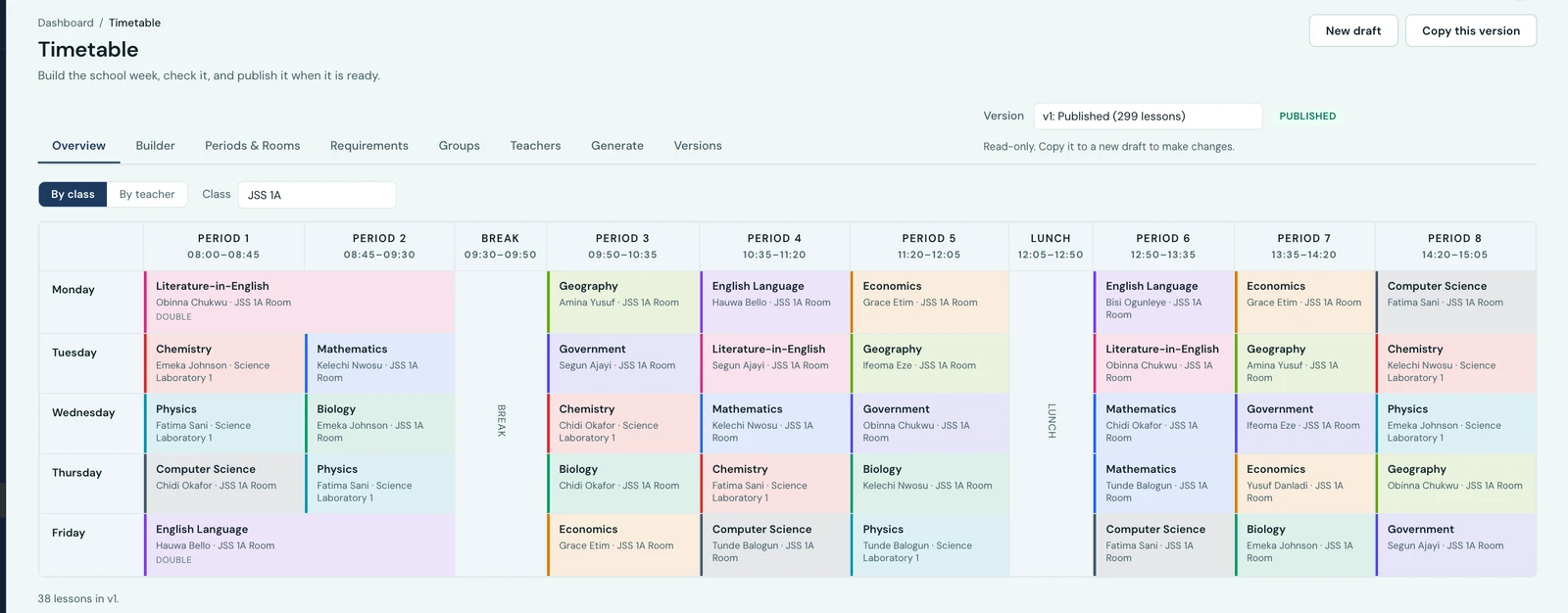
The Weekly Timetable builds your school's teaching week: which class is where, with whom, in which room, at what time. It is one workspace, Timetable in the sidebar, with eight tabs.
You can build the week by hand, generate it and then adjust, or generate it outright. Whatever you do, nothing a teacher or a family sees changes until you publish.
Before you build
Two things have to be in place, both under Periods & Rooms.
A bell schedule is the shape of your school day: the periods, their times, and which of them are teaching periods and which are breaks. A class runs to exactly one schedule, and classes taught together must share it. Most schools need one; a school whose junior and senior sections run different days can have several.
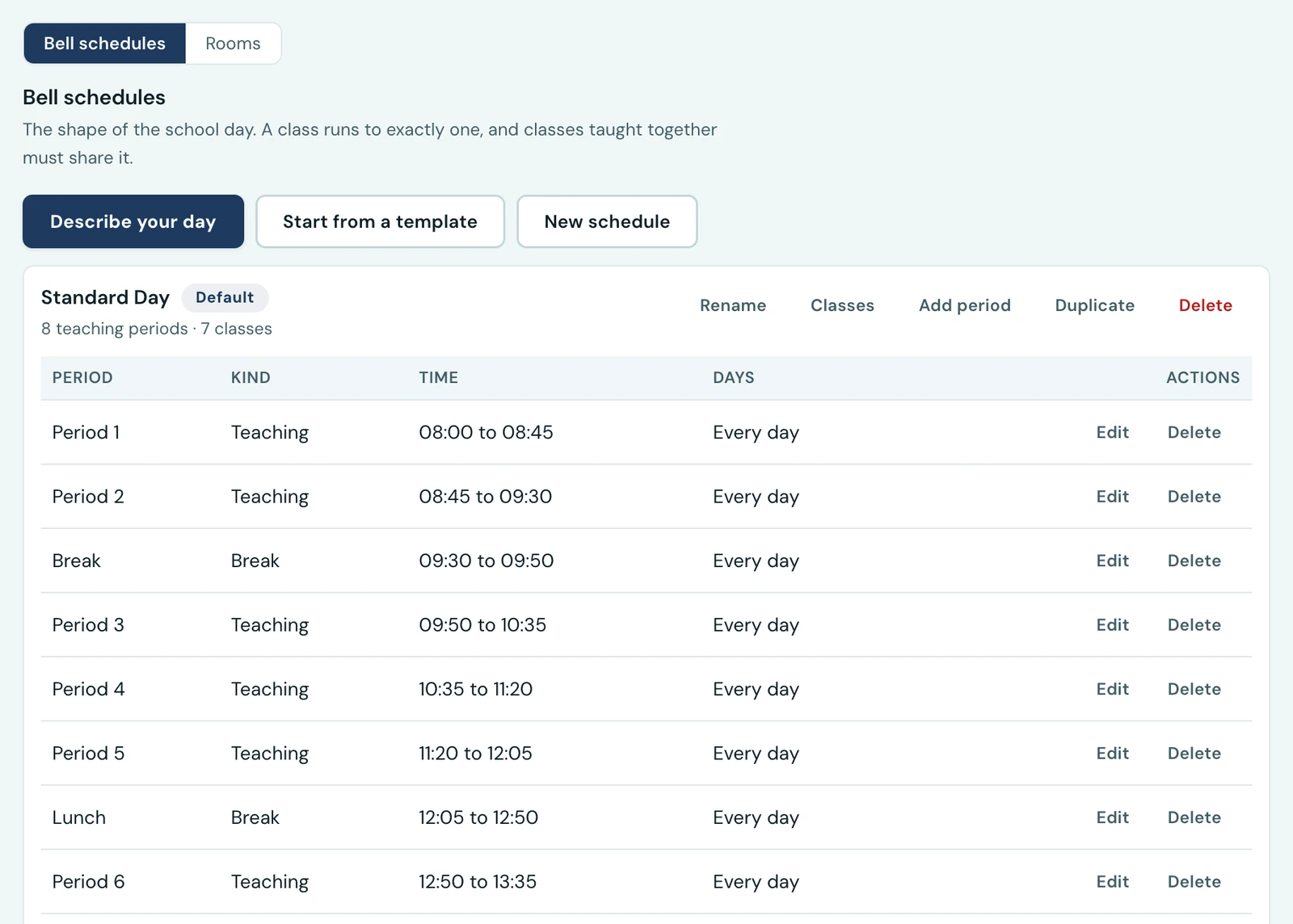
The shape of the school day, and the one thing that has to exist before a lesson can be placed.
Each period carries its own start and end time, so periods do not have to be the same length: a forty-minute first period and a seventy-minute double practical sit in the same schedule.
A period can also run on some days and not others. That is how you build a short Friday. Leave a period's days blank and it runs whenever the school teaches; name the days and it runs only on those. A school that finishes at one o'clock on Friday sets its last two periods to Monday through Thursday, and nothing is placed in them on Friday. A school whose Friday is a different shape rather than a shorter one, with a longer midday break and the afternoon behind it, adds Friday-only periods alongside the rest in the same schedule.
This is also where your term's teaching hours come from. The Academic Calendar counts each day at what your bell schedule says that weekday is worth, so a short Friday is counted short. Until you have a schedule, it falls back to the working hours in your calendar settings, which are one pair of times for the whole week and cannot know that Friday is different.
Rooms are the spaces you teach in. Each one has a kind (classroom, laboratory, hall, library, sports) and that kind is not decoration: a subject can require a laboratory, and the timetable will only put it in one.
Every class also needs a home room. It is where the class is unless a lesson says otherwise, so an ordinary lesson does not have to name a room at all, and a school that has never filled a room in still gets room clash detection.
A room can also state how many it seats. If you fill that in, checking a version tells you where a lesson has put more pupils in a room than it holds. It is a warning and never a refusal: a class of 42 in a room of 40 is a Tuesday, not a mistake, and only your school can say which of those it is. Leave the seats blank and nothing is ever said about that room. The count is only checked against rooms a lesson names for itself, not against a class sitting in its own home room, which is a fact about your building rather than about the week you have just built.
What each class needs
The Requirements tab is where you say how much of each subject a class gets in a week: periods a week, how many of those should be doubles, the most it should have in any one day, whether it needs a particular kind of room, and which teacher takes it.
Leave the teacher blank and the timetable will use whoever teaches the subject and is free.
The teacher list offers the people that class or subject is assigned to. It reads the Classes and Subjects fields on each teacher's own record, plus whoever is class teacher for the class, so a school with sixty staff is not asking you to find the right three by scrolling.
A teacher your school has assigned nothing at all is not offered. If somebody you expect is missing from the list, the fix is on their teacher record, which the school office keeps: add the class or the subject there and they appear here. Somebody already assigned in a week you built earlier stays selectable even if they now fall outside the list, so nothing you are not changing is disturbed.
You do not have to fill this in. Any subject you leave blank is given an even share of whatever periods its class has left, and the timetable is generated anyway, so a school arriving in August can have a week before it has typed a single number. What you do state is kept exactly as you typed it and the guess is made from what remains, so you can fill in the three subjects you have a firm view about and leave the rest. The generator tells you afterwards how many it assumed, because your own figures will always give a better week than an even split does.
The tab shows you the class's budget as you go, how many periods you have asked for against how many the week actually holds, and says so plainly when you have asked for more than there is.
Classes taught together
Sometimes one lesson serves several classes at once: a subject only a handful of seniors take, or a practical two forms sit together. That is a teaching group, on the Groups tab.
A group is one lesson, not two. Its periods belong to the group, so the classes inside it stop asking for that subject on their own sheets. The Requirements tab shows the subject there, read-only, pointing at the group. This is deliberate: two places to state the same thing is two answers that eventually disagree.
Because a merged lesson has no single class's home room to fall back on, a group needs a kind of room of its own. Two classes will not fit in either of their own rooms.
A merged lesson is taught to its classes whole, so it cannot be limited to one stream. A group cannot be made in a subject that some stream of one of its classes does not take, and a class whose stream does not take it cannot be added: that stream's pupils would be in the lesson. A group made before its streams listed their subjects can still be renamed or switched off, but its lessons cannot be placed or generated. Take those classes out of the group, or place the subject for each stream that takes it.
Teachers
The Teachers tab shows one teacher's whole week across every class they take, and how many periods they are carrying. It is also where you record when a teacher is not available, such as a morning off or a day they do not come in, and the timetable will not place them then.
How much any one teacher may be given is set on their own record, under Most periods a week on the teacher form, or school-wide under Most periods a teacher may be given in a week in the timetable settings, which covers everyone you have not given a figure of their own. Generating respects it as a rule. Building by hand does not, so Check warns you about anyone over their limit before you publish.
Generating
The Generate tab checks the school over before it offers to build anything. It tells you what is standing in the way: a class with no bell schedule, a subject nobody teaches, a class asking for more periods than its week holds, more practicals than your laboratories can hold. Warnings do not stop a run; blockers do, and each one names what to fix.
A subject that only some of a class's streams take is generated for each stream that takes it, with the class's own periods and limits. The streams are taught side by side, so one period can hold Physics for Science and Accounting for Commercial, and a class's week has room for its whole-class lessons plus its busiest stream's. Two things are left out, and the tab names each before you run it: a subject none of a class's streams takes, and a teaching group whose subject a stream of one of its classes does not take.
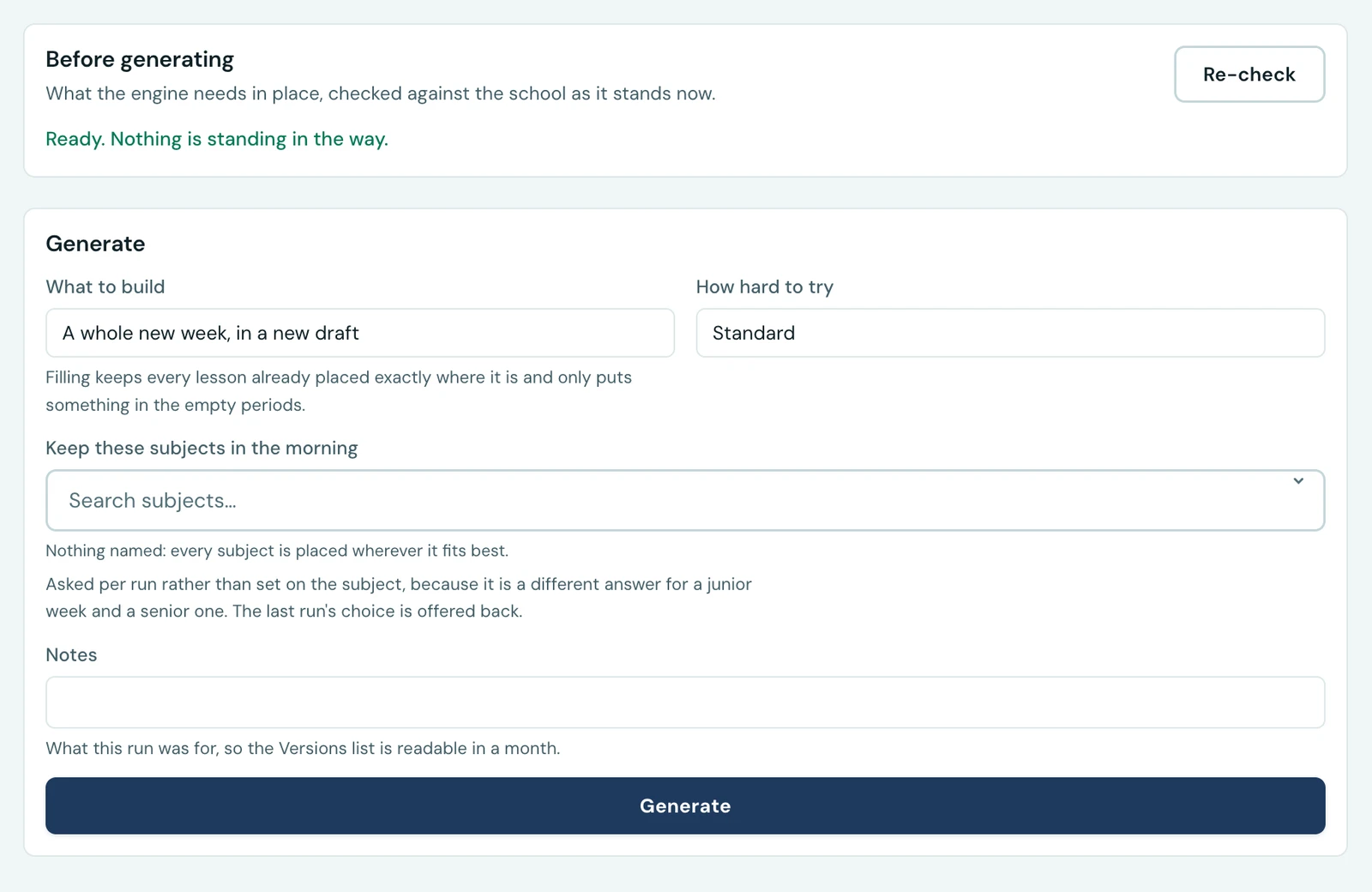
The readiness check runs before the button, so a week that cannot be built says why first.
You can build a whole new week in a fresh draft, or fill the one you have. Filling keeps every lesson already placed exactly where it is and only puts something in the empty periods, which is what you want after moving a few lessons by hand.
You can name the subjects you want kept in the morning where the week allows it, usually the core ones. It is asked per run rather than set on the subject, because it is a different answer for a junior week and a senior one, and naming nothing is a perfectly good answer. Whatever you chose last time is filled in for you the next time you open the tab, so a run you want to repeat with one thing changed does not have to be retyped.
A run never touches your published week. It produces a draft.
Colouring the week
Every lesson is drawn in the colour you give its subject on the Subjects page, so the same subject is the same colour everywhere in the week and a class learns the shape of its week before reading a word of it. A subject with no colour of its own is drawn in your school's own.
You set it on the subject itself: Subjects, then the subject, then Timetable colour. Pick
from the swatch or type a hex value such as #2563EB, and leave it empty for your school's own
colour. The list shows each subject's colour beside its name, so a palette can be checked at a
glance rather than one subject at a time.
Settings → Timetable → Colour each lesson by its subject turns it off, and the whole week goes back to one colour. The switch reaches every surface at once: this workspace, a class's own page, a pupil's portal, a parent's, and every PDF or printed copy.
Building and adjusting by hand
The Builder is a class's week with a palette beside it of what is still to place. Pick a lesson up and put it down, by mouse or by keyboard. The count beside each subject tells you what is left.
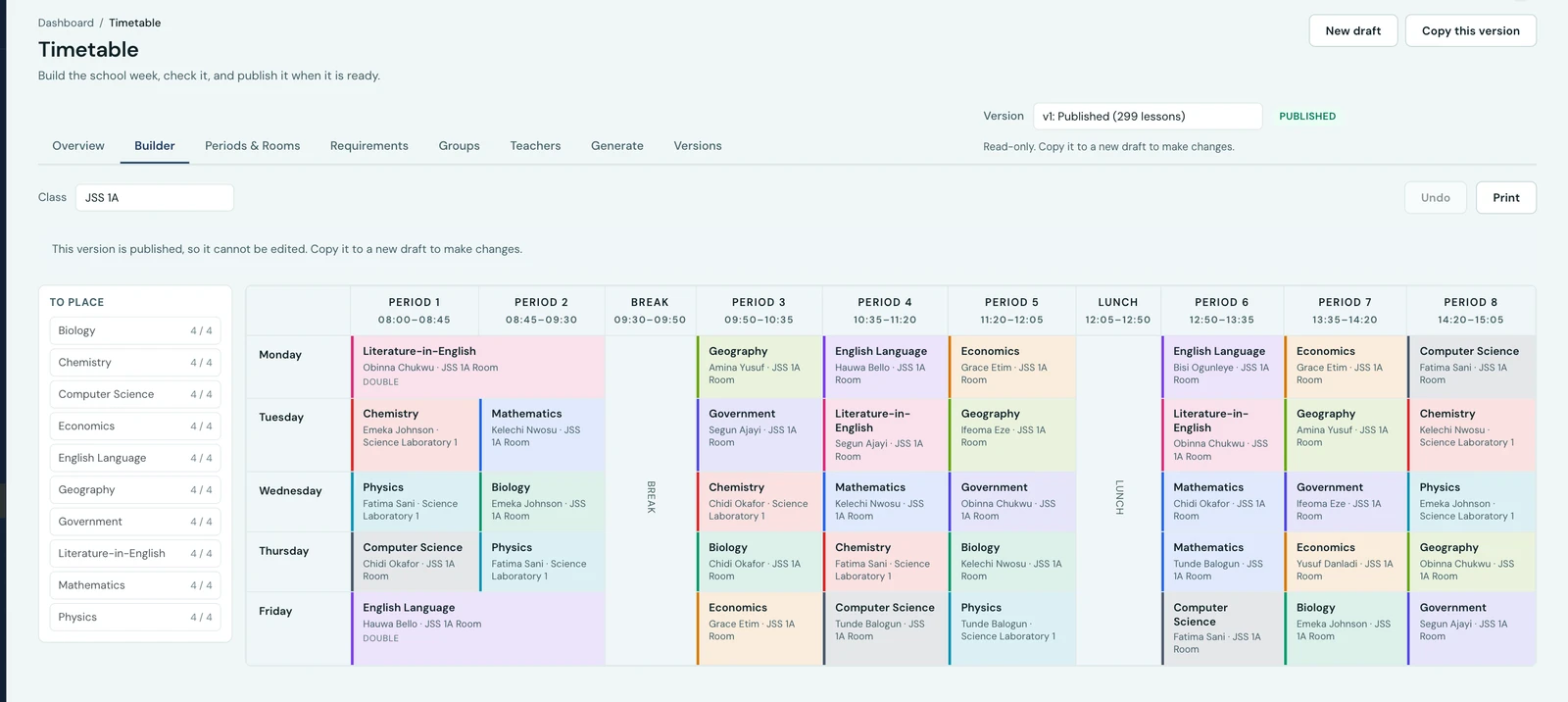
Every subject placed, and the panel beside the week counting what is left.
Every change saves as you make it, and Undo steps back through what you have done. A clash is drawn in the cell it happens in, so you can see it where it is rather than in a report somewhere else.
The week shades itself as you pick a lesson up
The moment you pick a subject up, every free cell in the week is marked with how good a place it is:
- Best: as good a slot as this lesson has anywhere in the week.
- Workable: fine, and it costs the week a little.
- Costly: possible, but it bunches the class's day or gives a teacher a gap.
- Not possible: something already there rules it out.
Hover any cell and it tells you why, and who would teach the lesson if you dropped it there. It is the same reasoning the generator uses, asked one cell at a time, so what you are shown is what the engine would have done itself.
It is advice, not a wall. You can still drop a lesson into a cell marked not possible, and if it genuinely cannot go there you will be told exactly what stops it. Your school knows things the timetable does not.
What you can change on a lesson
Click a placed lesson and you can change its teacher, its room, whether it is a double, and the note on it. For a class taught in streams, you can also change which streams it is for, one or several taught together. Drag it to change its day and period. So a teacher put on a subject at the wrong time is moved to the right one, and a subject handed to the wrong teacher is handed to another, without regenerating anything.
Changing which class a lesson belongs to is the one thing that is not an edit. Take the lesson off that class and place it on the other. The two are not the same move: they clash with different things and they are two different cells on the screen, and a change that quietly moved a lesson out of the week you were looking at is a change you would not find again.
Versions, and going live
Every week you build is a version. Drafts are yours to change; the published one is what teachers and families see. There is at most one published version per term, and publishing a new one archives the old one rather than deleting it.
Version numbers start again at v1 each term, so the list names the term and session each one belongs to. It deliberately shows every term rather than only the current one: schools build next term's timetable during this one, and a list that hid it would lose your work the moment the term rolled over.
Starting a new term is therefore something you do rather than something that happens to you. Open last term's timetable and choose Restore: it copies that week into a fresh draft in the term you are now in, leaving the original exactly as it was. Nothing is archived or carried over behind your back, because a timetable that changed itself overnight is one nobody can trust.
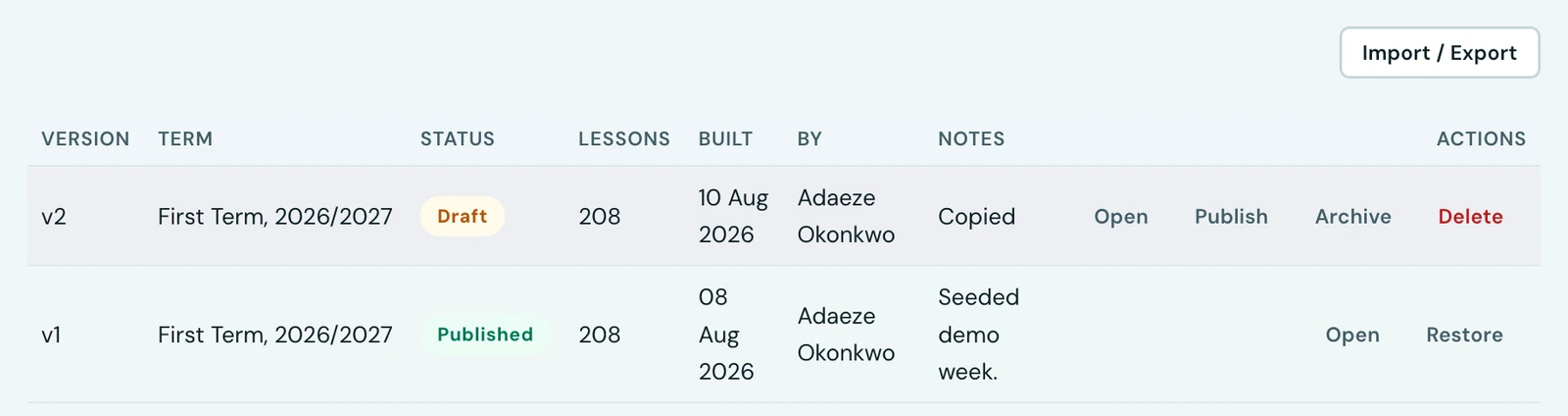
Every version of the week, and the clash check that decides whether one may be published.
Before publishing, check the version: errors stop a publish, warnings do not. You can also compare two versions to see exactly what moved between them, which is what you want when a change goes out mid-term and somebody asks what changed.
A draft you no longer want has two exits. Archive puts it out of the way and keeps it readable, which is what you want for a week you might come back to. Delete removes it and its lessons for good, which is what you want for the draft somebody started by mistake. Only drafts can be deleted: the published week is what your school is running, and an archived one is the record of a week it ran, so neither is ours to throw away.
Bringing in a week you already have
A school arriving with a timetable it built somewhere else does not have to type it in again. Import / Export on the Versions tab takes a spreadsheet of lessons and fills the draft you have open with them: one row per lesson, naming the class, the day, the period, the subject and whoever teaches it.
The same button downloads the version you have open in exactly those columns, so exporting a week, editing it in a spreadsheet and bringing it back as a new draft is a round trip that loses nothing.
Two things are worth knowing before you upload. An import adds to the draft it is pointed at, so start a new draft when you mean to replace a week rather than add to it. And every row goes through the same clash rules the builder enforces, which means a file that books a teacher into two rooms at nine o'clock is refused with both rows named, rather than imported and discovered later. Nothing is written until the whole file is clean.
The full column list is in Bulk Import & Export.
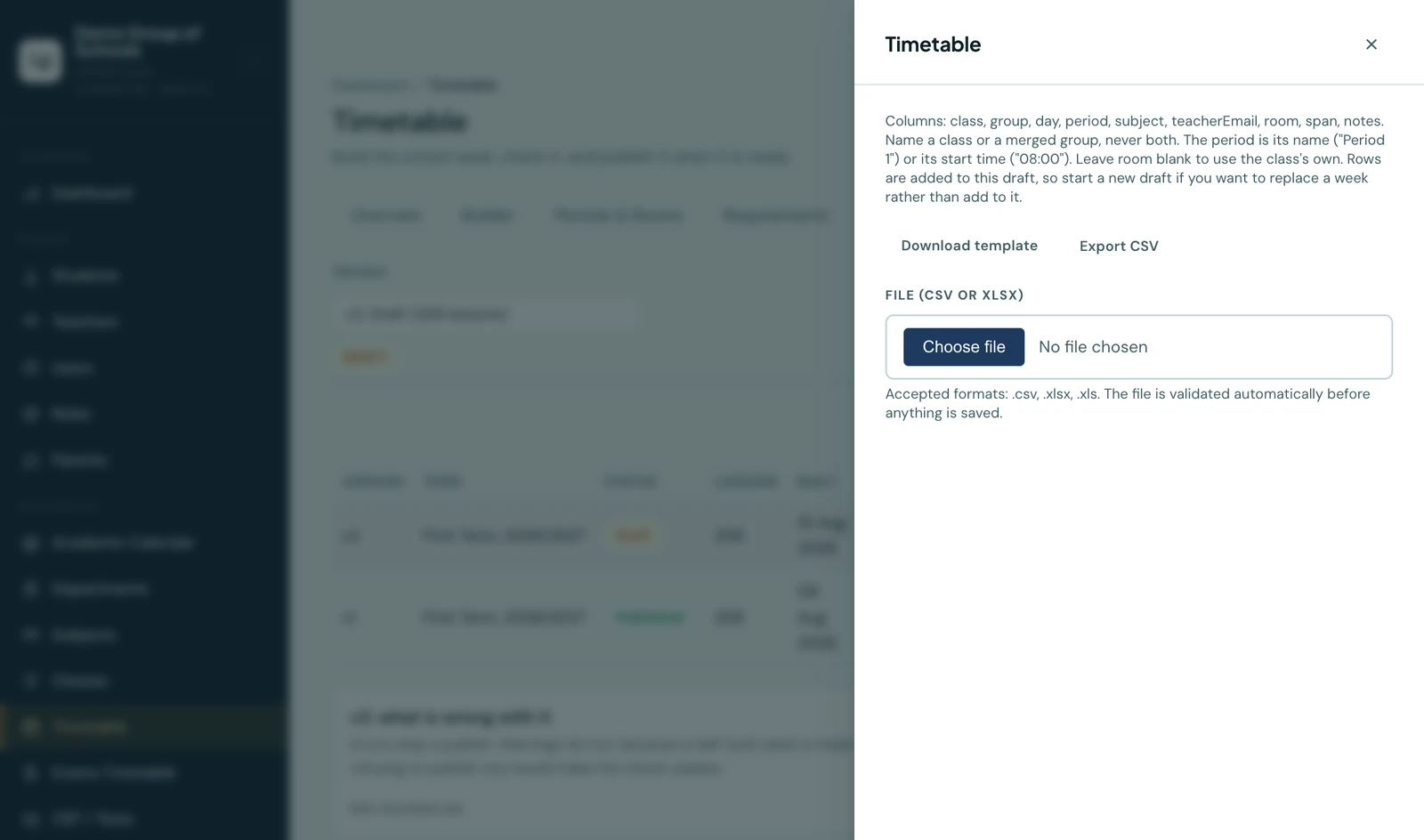
The drawer the week goes in and out through. It is offered on a draft only, since an import fills a draft and never a published week.
What everyone else sees
Once a version is published:
- Teachers see their own week, and what they are teaching next.
- Students see their class's week.
- Parents see each child's week.
- The mobile app shows the same published week, a day at a time and opening on today, with the period running now and the one after it on the dashboard.
A timetable opens on today wherever it is read. On the phone that is the day already selected when the screen loads; on a teacher's own timetable in the browser it is the day already filtered to, with a Week button beside the days for the whole thing at once. On the class, student and parent weeks, which are drawn as a full grid, today's column is marked instead.
Where today is a day your school does not teach on, it opens on the next day it does, rather than sending the reader back to Monday: read on a Saturday that is Monday anyway, but a school that does not teach on Wednesdays gets Thursday, which is the day about to be lived. A one-off closure, a holiday falling on a Tuesday, does not move it, because a reader standing in that day is still asking what the Tuesday timetable is.
Nobody outside the workspace sees a draft. Until you publish for the first time, your existing timetable is what everyone keeps seeing, so you can build the new one at your own pace.
Who is told
Publishing notifies the teachers with a lesson in the new week, in their notification centre and on their phone. Whoever pressed Publish is left out, having just done it.
Students and parents are not notified, and that is a deliberate choice rather than something missing. A timetable is your school's standing weekly arrangement, not an event: the moment you publish it, it is on every student and parent portal and in the app, so there is nothing a family needs to do about it in the next hour. Notifying everyone would also mean that correcting a single Thursday sends a message to every family in the school, which is how people learn to dismiss notifications. Announce a new timetable however you announce anything else, and the week itself is already there when they look.
The notification families do get about a timetable is the exam one. If an exam paper is moved or cancelled after the exam series has been published, the families sitting it are told, with both the old slot and the new one named.
Publishing the same version twice notifies nobody the second time.
A class's own page still has a Timetable tab, and it draws the same week the same way: the periods across the top, the days down the side, exactly as the workspace draws it. It is the quick look at one class without leaving that class's page.
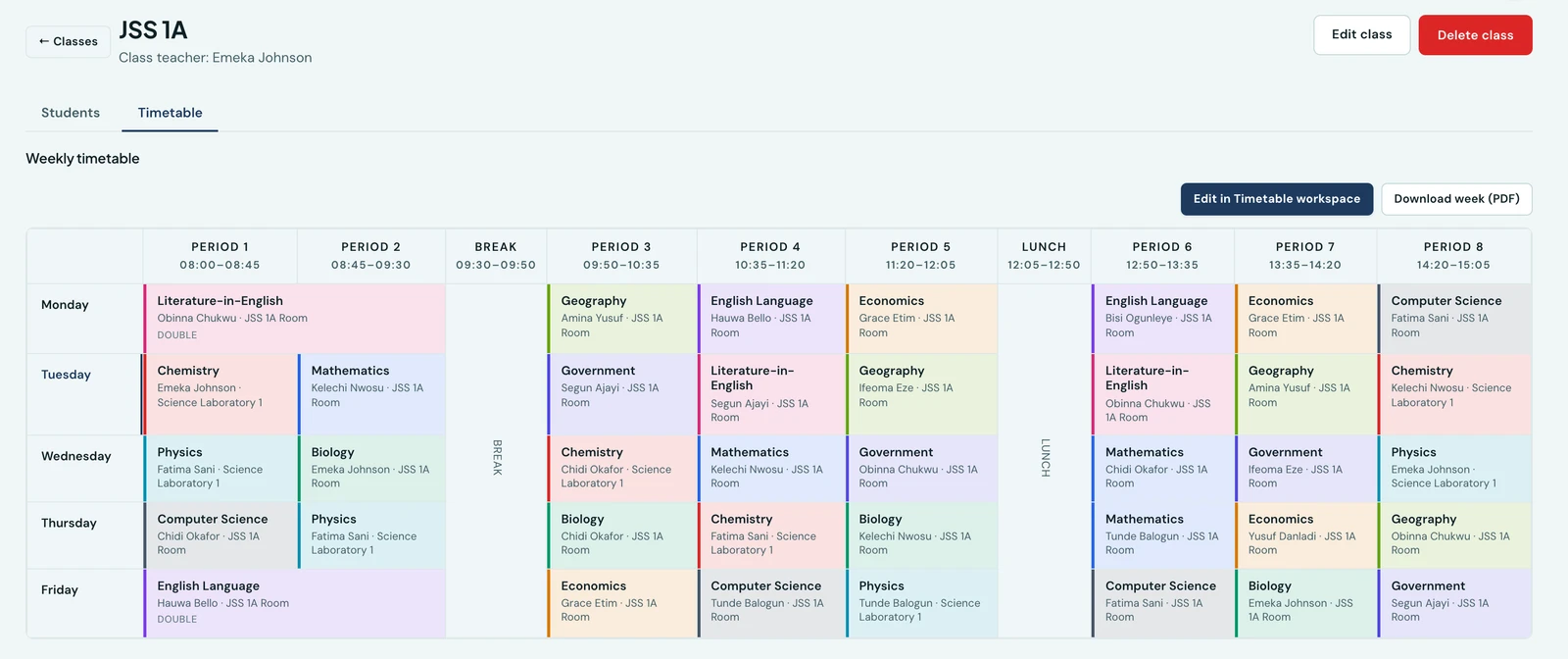
The same published week, read from the class's own page.
Publishing for the first time is what closes that tab to editing. It keeps showing the week, now the published one, but its Add Period, Edit, Delete, Clone and Import buttons go, and it says where the timetable is built instead. Two builders writing to two places when only one of them is read is how a school loses a Tuesday.
On the phone
The published week is on the mobile app as well. The phone shows one day and has no builder, deliberately: a timetable is constructed at a desk and read on the way to a lesson. Pick a class, pick a day, and the periods run in order with their teacher and room, breaks and lunch included. Week hands over the printed landscape sheet.
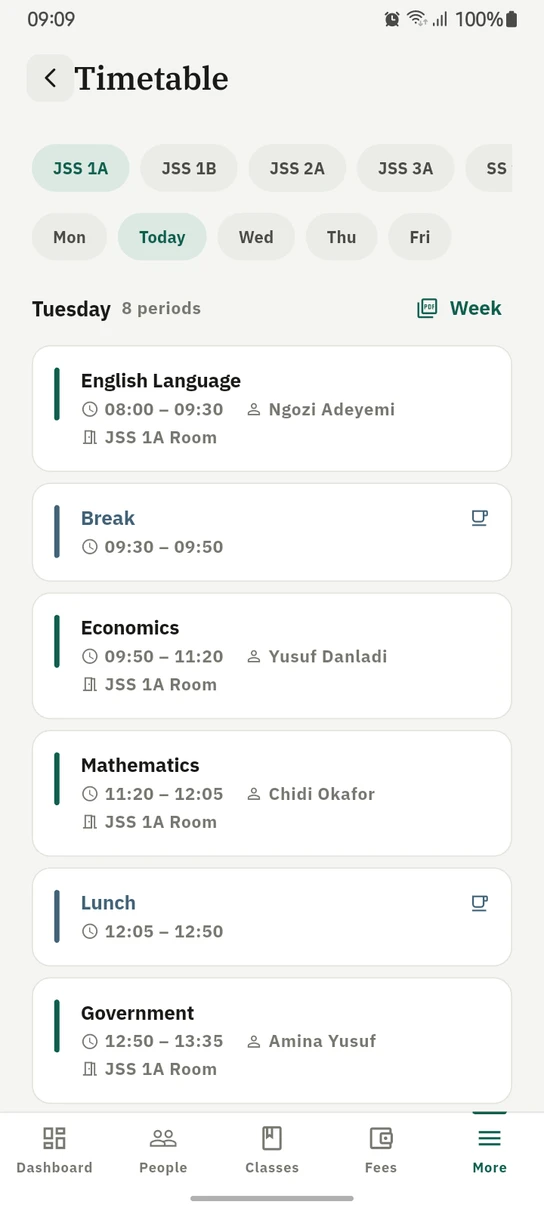
One day at a time on the phone, breaks included, with the whole week a tap away as a PDF.
Ready to try it with your school?
Three-month Basic trial. No card required to register.