
Academics
Guest Entrance Exams
Run CBT entrance exams for prospective students with no student record required. Candidates register by email and receive an access link.
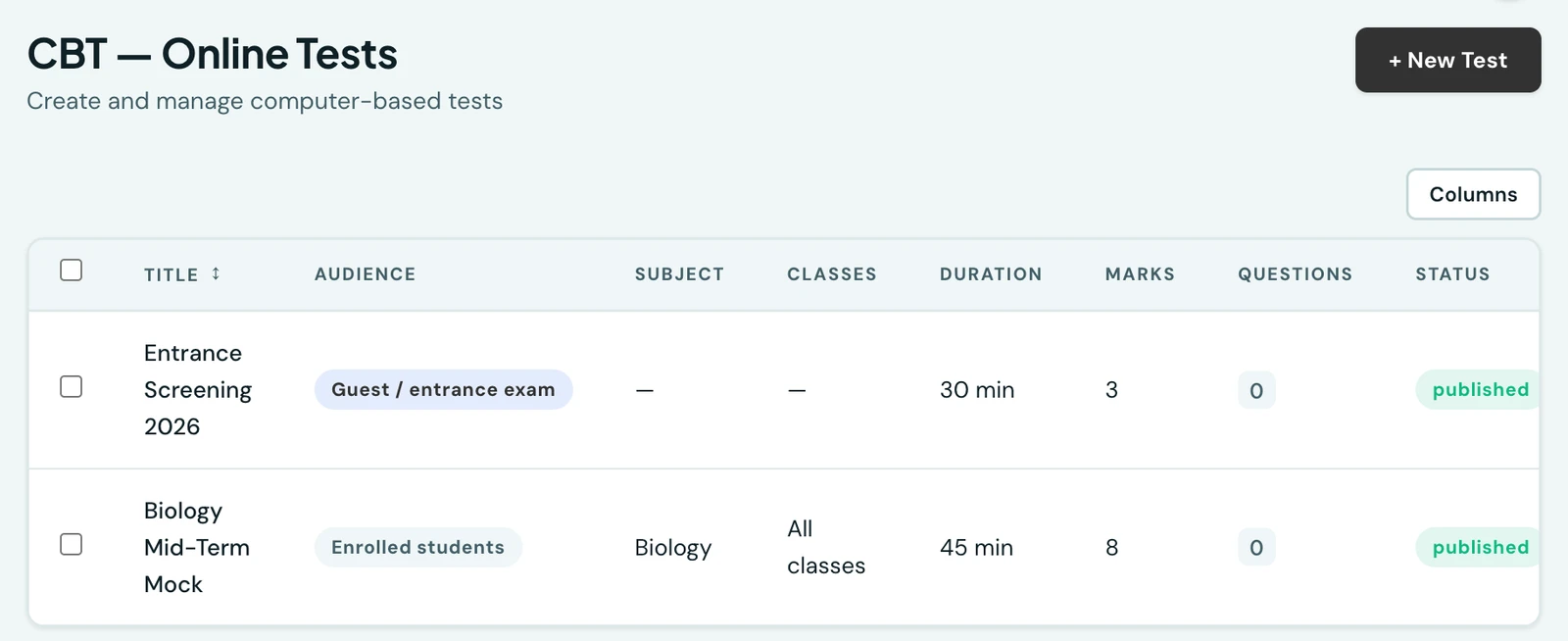
Run a CBT entrance exam for prospective students who are not enrolled yet. No student record is required. Candidates register with just their name and email and receive an emailed access link.
Creating an entrance exam
- Go to CBT → New Test and set Audience to Guest / entrance-exam candidates. A guest test has no class assignment, since the candidates are not enrolled yet
- Add questions and publish the test exactly as you would for an ordinary test
- From the test list, click Copy registration link and share it with prospective students (website, email, printed flyer, etc.)
Candidate experience
- The candidate opens the registration link, enters their first name, last name, and email (phone is optional), and submits
- They receive an email with a one-time access link, so there is no password to set or remember
- Opening the link takes them straight into the exam, with the same timed, auto-marked experience as an enrolled student's test
- The access link stays valid until it expires, so a candidate can reopen it later (e.g. on another device). It simply cannot be used for any test other than the one they registered for
Results
Submissions appear alongside enrolled-student submissions on the test's results page, identified by the candidate's name and email. If Show Results Immediately is enabled, the candidate also receives an email as soon as their result is ready.
On the phone
Entrance exams are created on the web: the mobile app cannot set a test's audience to guest candidates or copy the registration link. Once one exists, you can follow it from the phone. Open More → CBT / Tests, tap Filter tests and choose Guest / entrance exam under Audience. Open the test and tap View results to see each candidate's submission, marked Guest, beside any enrolled pupils'.
Ready to try it with your school?
Three-month Basic trial. No card required to register.