
Finance
Exporting Finance Reports to CSV
Every report on the Finance Reports tab downloads as a CSV from its own header, on the web and in the mobile app, covering exactly the period and filters on screen.
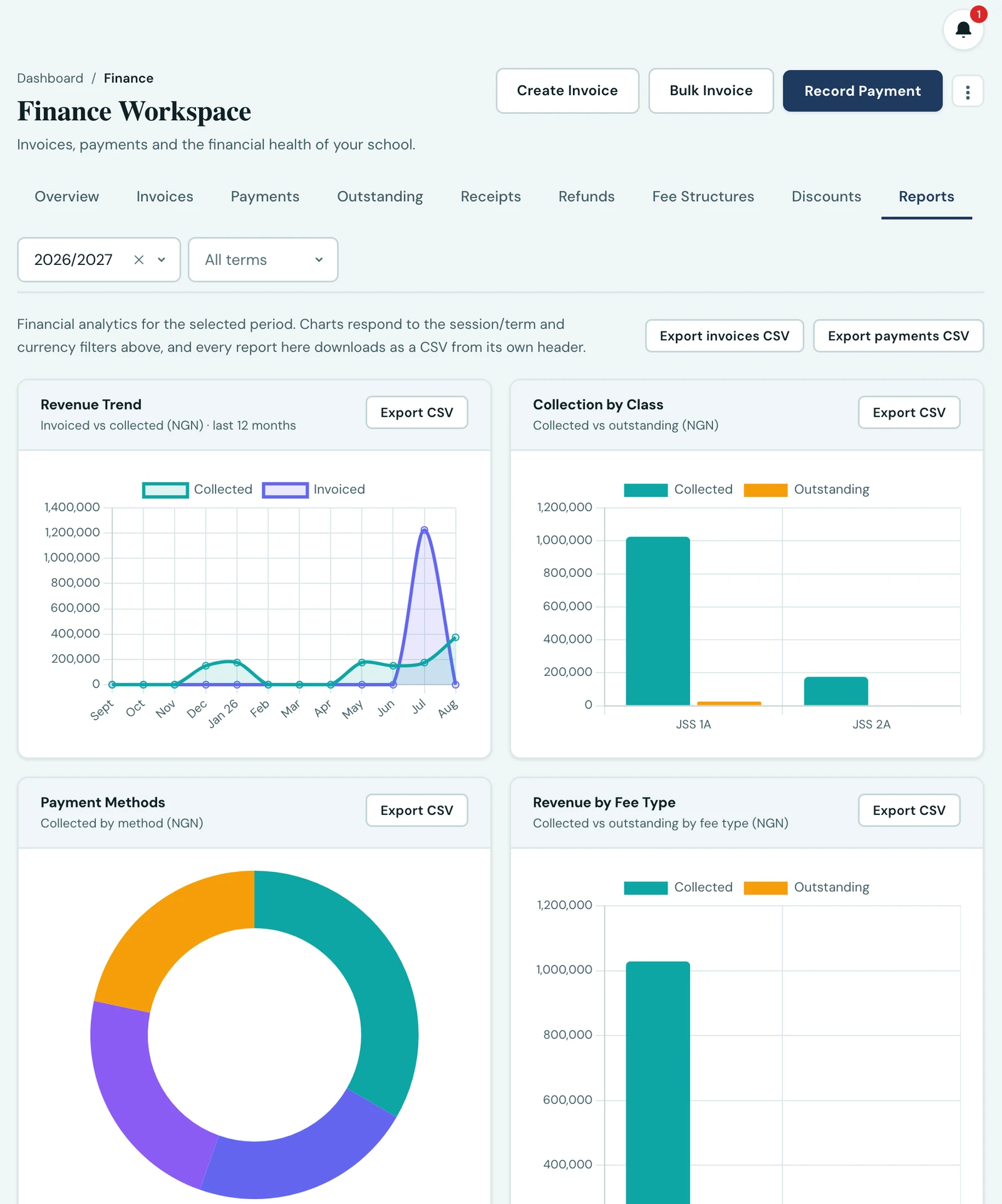
Every report on the Reports tab of the Finance Workspace can be downloaded as a CSV, and the button sits in the header of the report it exports rather than in a toolbar you have to match back to the cards below it.
What downloads
| Report | The file holds |
|---|---|
| Revenue trend | One row per month per currency, across the trailing twelve months |
| Collection by class | Every class, worst outstanding balance first, per currency |
| Payment methods | Every method, per currency, net of refunds |
| Revenue by fee type | Every fee type, per currency, with invoiced, collected and outstanding |
| Cash flow statement | Every month in the window, invoiced, collected, refunded and net |
| Bank settlement reconciliation | One row per currency, with both window dates on every row |
| Ledger integrity | One row per anomaly found |
The file always matches the screen
A downloaded report covers exactly the period and filters that were on screen when you asked for it. Change the session or term at the top of the workspace and the next download follows. The report and the file are built from the same figures, so they cannot disagree about what a term collected.
Two reports are deliberately not period-filtered, because the reports themselves are not: the revenue trend is a trailing twelve months across every term, and ledger integrity asks whether the books reconcile right now. The bank settlement reconciliation and the cash flow statement follow their own date window rather than the academic period, since a bank statement covers dates and a term carries none.
Amounts are never summed across currencies
If your school invoices in more than one currency, each report writes one row per currency and carries no total spanning them. Two currencies share no meaningful sum, so the file hands you the figures per currency and leaves you to total the column you mean.
More than the chart shows
A chart draws the largest ten bars, because an eleventh is unreadable. Those exports are not capped at ten: collection by class gives you every class and revenue by fee type every fee type, which is usually the reason to want the file rather than the picture.
Two files are bounded, and both for a reason. The ledger integrity export stops at 500 findings per check and says so in a column of its own, because the number that matters is whether it is zero and a ledger with 500 anomalies of one kind is an incident whose exact size changes nothing. The invoice and payment list exports take up to 10,000 rows, the platform's limit on any list downloaded as a file.
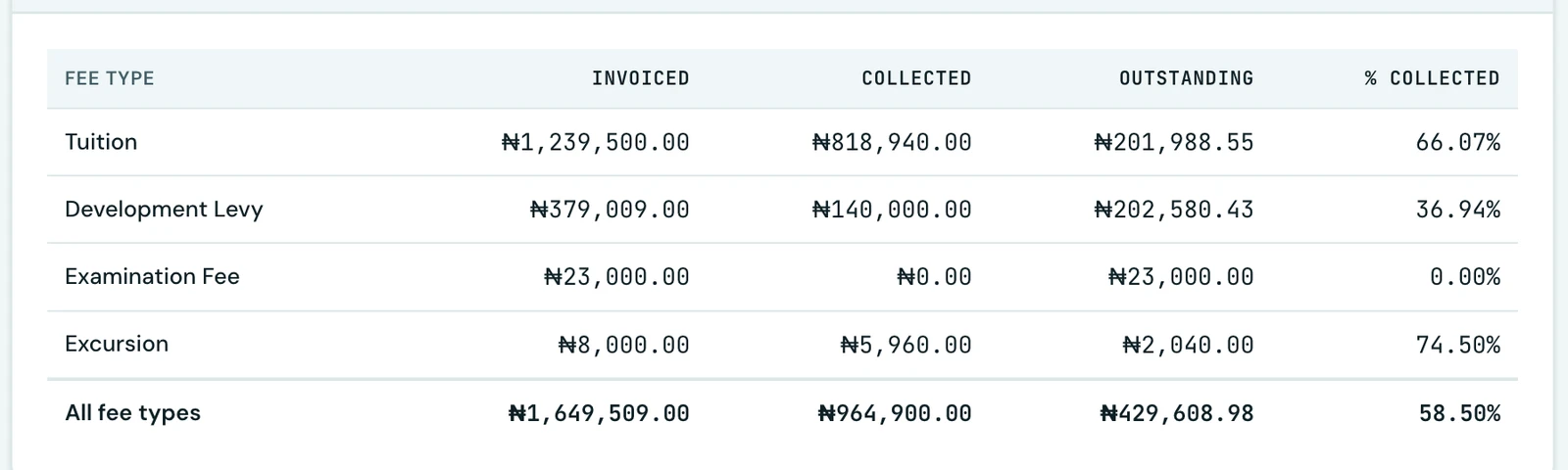
Revenue by fee type also appears as a table under its chart, with the exact invoiced, collected and outstanding amounts and the percentage collected for each fee type, plus a total across all fee types in the selected currency. The chart answers which fee types are the big ones; the table answers how much, to the kobo.
A healthy ledger still downloads a file
The ledger integrity export is offered whether or not anything is wrong. A ledger that balances downloads a dated file with column headings and no rows, which is exactly what you want to keep if you check the books at the end of each term: a record that they reconciled, on a stated date.
On the phone
The same exports are on the phone, as a download icon in each report's own header, across three screens reached from Fees. Analytics exports the collection trend, payment methods, revenue by fee type and collection by term, under a collection overview it reads on screen rather than downloading. Statements carries the cash flow statement, the bank settlement reconciliation and the ledger integrity check. Collection by class is a screen of its own, since it is a list of every class rather than a chart.
Collection by term is the one report the phone exports that the web's Reports tab does not draw at all. Tapping any of them opens your phone's share sheet, so the file can go straight to a spreadsheet app, an email draft or your school's drive. A phone has nowhere useful to put a CSV on its own, which is why it is offered as a share rather than a silent download.
Who can export
Exporting needs the finance.export permission, which is separate from the finance.view permission that draws the reports. Reading figures on screen and taking a file of your school's finances off the platform are different levels of trust, so someone can be given one without the other. Without the export permission the buttons are not shown at all.
Ready to try it with your school?
Three-month Basic trial. No card required to register.