
Finance
Fee Reminders and the Reminder Queue
Remind a family before an invoice falls due and chase it after, automatically, at the day tiers you choose. Hold each reminder in a queue for a member of staff to release. Includes the message template, the channels used, and how a reminder is never sent twice.
An invoice that has passed its due date with a balance outstanding earns a reminder. 1410SMS raises those for you every night, so nobody has to keep a list of who is late.
When a reminder is raised
Each night we look at every unpaid and part-paid invoice past its due date, and compare how many days late it is against your school's day tiers. The default tiers are 7, 14 and 21 days past due, and you can change them under Settings → Finance → Fee Reminders.
Each tier fires at most once per invoice, ever. An invoice that is 30 days late does not get a 7-day reminder every night; it got one on day 7, one on day 14, one on day 21, and nothing since.
A reminder is never sent for an invoice that has been cancelled, or settled between the night it was raised and the moment it would be sent.
Reminding before the due date
A school can also give notice ahead of a due date, which is usually the cheaper reminder: a family that pays on time never needs chasing. Set the days under Settings → Finance → Fee Reminders → Before-Due Reminder Day Tiers.
These tiers are counted backwards from the due date, so 3 means three days before it. They
start switched off: the list arrives empty and says so, and adding a row is what switches it on.
Removing the last row switches it off again, which is not something the overdue tiers allow, since
emptying those would stop chasing fees altogether. Everything else works
the way the overdue tiers do: each fires at most once per invoice, and never for an invoice already
settled or cancelled.
Where an invoice is raised inside its own window, only the nearest reminder is sent. An invoice raised two days before it falls due, at a school with 3-day and 7-day tiers set, gets one notice rather than two, and the one it gets does not claim a week's notice the family never had.
Both kinds sit in the same list and each says which it is: 3 days before due in blue, or 7 days overdue in amber.
The message
Reminders go to the same people as any other fee notice: the pupil's linked parents, falling back to the guardian contact on the pupil's record, and finally to the pupil themselves where a student manages their own account.
The email wording is yours to write, under Settings → Finance → Fee Reminders. The two kinds have
a body each, so a notice sent before a due date never has to be worded as though the family were
already late. You can use {{studentName}}, {{balance}}, {{schoolName}} and {{period}} in
either, plus {{daysOverdue}} in the overdue one and {{daysUntilDue}} and {{dueDate}} in the
before-due one.
WhatsApp reminders use a message template pre-approved by Meta and cannot be reworded, which is a condition of being allowed to start a WhatsApp conversation at all. Which channels a reminder uses is set alongside every other notice under Settings → Communication → Notification Channels; see Notifications. Turn every channel off for Fee reminder and no reminders are sent at all.
Reviewing reminders before they send
By default a reminder goes out as soon as it falls due, and the first anyone at the school hears of it is when a parent replies. That suits most invoices. It does not suit the ones a bursar already knows about: a family that has agreed terms, one that paid by transfer that morning, one being handled in person. A reminder that ignores all of that is worse than no reminder.
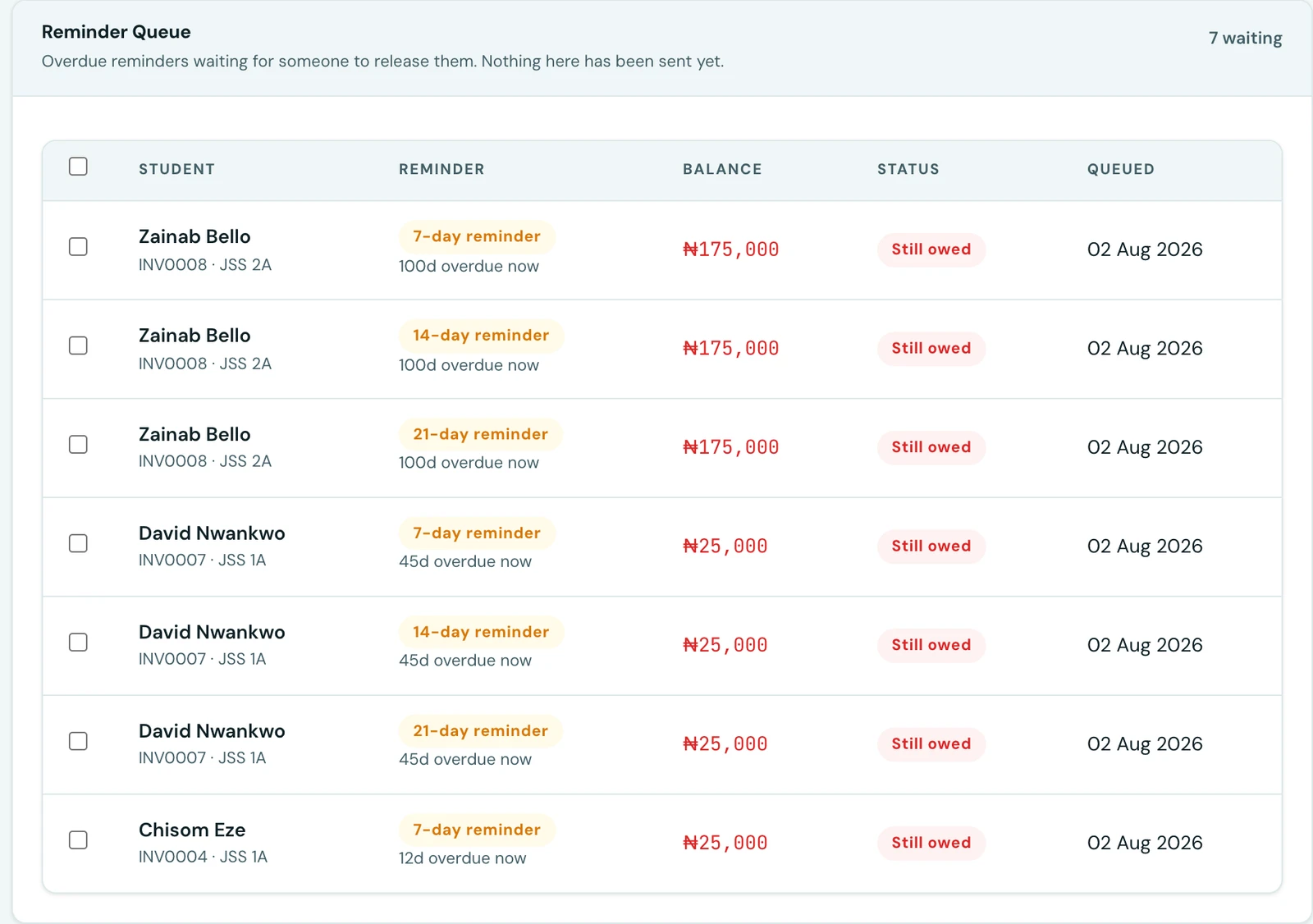
So you can ask to see them first. Turn on Review reminders before sending under Settings → Finance → Fee Reminders, and each night's reminders are held in the Reminder Queue on the Outstanding tab of the Finance Workspace instead of being sent.
Each queued reminder shows the pupil, the invoice, which day tier raised it, the balance outstanding now, and whether it is still owed. That last one matters: a family may have paid since the reminder was raised, and a reminder is not worth sending to someone who has already settled.
Tick any number of them and choose:
- Send selected. The reminders go out over your configured channels. Anything that has been settled or cancelled in the meantime is skipped rather than sent, and you are told how many.
- Dismiss. Nothing is sent, and that reminder is never raised again at the same day tier. Later tiers still will be: deciding not to chase a family at seven days says nothing about twenty-one.
Releasing or dismissing a reminder needs the Send fee notifications permission, the same one required to resend an invoice by hand. Anyone who can see the finance workspace can read the queue. Every decision is recorded in your audit log.
Chasing someone right now
You do not have to wait for a tier. On the Invoices tab, tick any invoices and use Send reminders to notify those parents immediately. That is independent of the nightly tiers and of the review queue.
On the phone
Reminders are raised by the server every night, so nothing has to be done on any device for them to go out. Their settings, the queue and an immediate reminder are all on the mobile app. The day tiers, the before-due tiers, the email wording and Review reminders before sending are under More → Settings → Finance, in the Fee Reminders group, and Fees → ⋮ → Finance settings goes to the same place.
With review switched on, open Fees, tap the ⋮ menu and choose Outstanding, then the Reminders tab. Tick reminders and tap Send or Dismiss. A reminder whose invoice has been settled or cancelled since it was queued is marked as no longer due.
To chase someone right now, long-press an invoice on Fees to start selecting, tick any others, and tap Send reminders.
Ready to try it with your school?
Three-month Basic trial. No card required to register.