
Academics
Class Resources
Papers, reading lists, diagrams and recordings a teacher shares with a class. Grouped by what each thing is, published deliberately, and shared by teachers from the browser or the app.
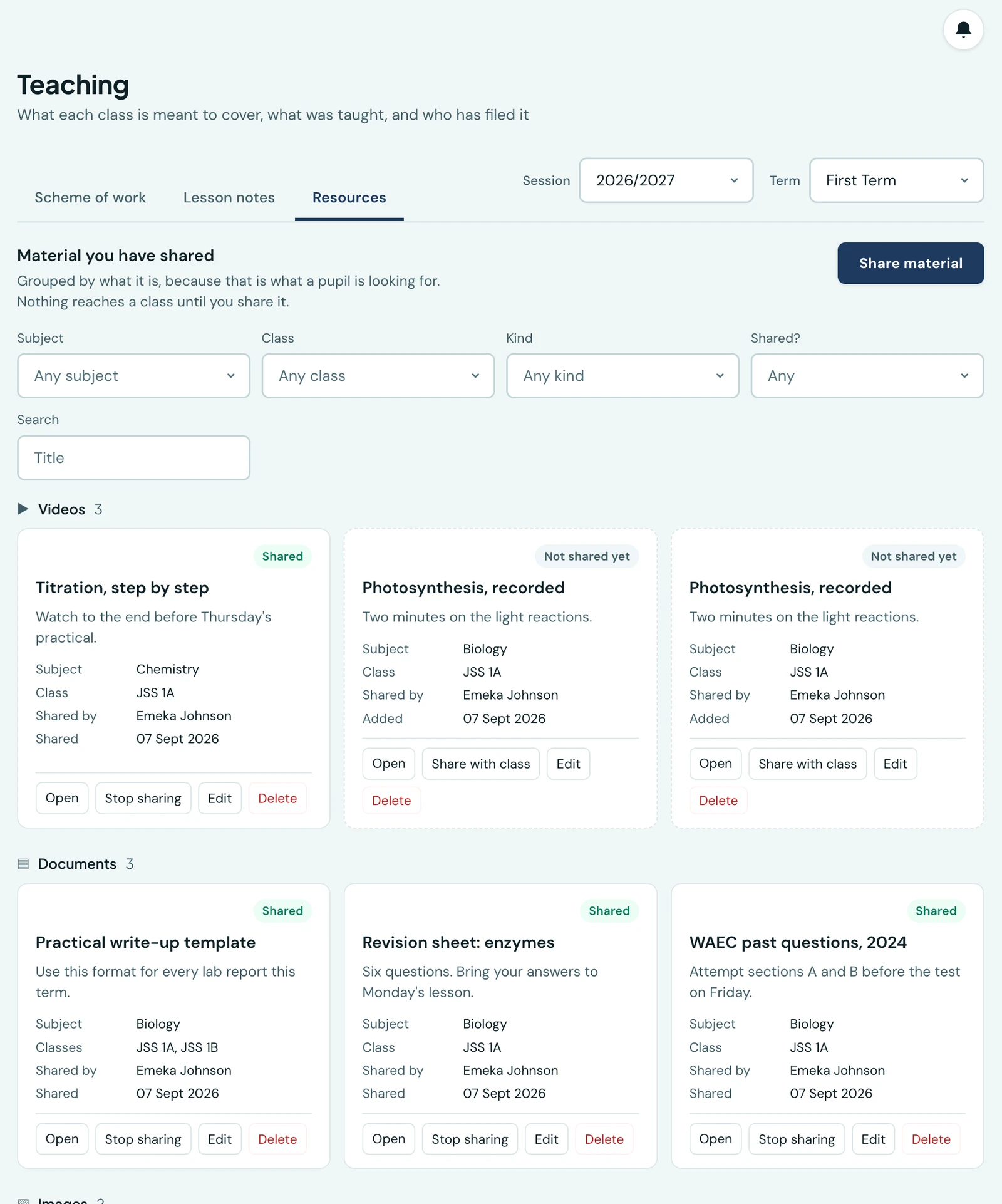
Every school already shares material with its classes. A past paper is photocopied, a reading list is dictated, a link to a video goes into a WhatsApp group at nine in the evening and is buried by morning. What no school has is one place a pupil can look, so the question this page answers is the one a child asks the night before a test: where is the paper Mr Johnson gave us.
Resources live under Teaching in the sidebar, alongside lesson notes and the scheme of work, on a tab called Resources.
The shelf is split into sections by kind: videos, documents, images, audio and links. Press a section's heading to fold it away and again to open it, which keeps a long term's worth of material to the kind you are after. The heading still shows how many items the section holds while it is folded. Choosing a kind in the filter opens its section. Pupils and parents can fold their sections the same way, in the browser and in the app.
What you can share
A file or a link.
Files can be documents, up to 5MB, which is a four-page phone scan of a past paper and covers the common case. Images can be 2MB, which is more than a photographed worksheet needs. Video can be 20MB, which is about two minutes filmed on a phone, and audio 5MB, which is about five minutes of speech. Every school can upload video, on every plan.
Those figures are deliberate. A two-minute clip is what a teacher actually records: a worked example, a practical demonstration, a reading. A forty-minute lecture belongs on a link, which costs the school nothing and which this page has always accepted. A video you upload is given a still frame automatically, taken from the clip itself as you add it, so a class scrolling a list of them can tell which is which.
Links can point anywhere. We deliberately do not keep a list of approved sites: a whitelist is a wall between a teacher and the video their own staff group circulated this morning, and every school would want a different one. What the platform does instead is tell you what the class will actually get, as you paste it. A YouTube or Vimeo link says this plays without leaving the page. A link straight to a media file says it usually plays in place. Anything else says it opens in a new tab, which is the truth rather than a failure.
One share, however many classes
A teacher taking JSS 1A and 1B for the same subject shares once and picks both classes. It is one resource: edit the title and both classes see the new one, remove it from one arm and it stays with the other. Nobody uploads the same worksheet twice.
Nothing reaches a class until you share it
Adding material does not give it to anybody. It sits as a draft, visible only to the teacher who added it, until they press Share with class. That is on purpose: a teacher assembling next week's material should be able to do it in the open, without a class watching it appear a paragraph at a time.
Stop sharing takes it back off the list.
Who can do what
Three permissions, and a fourth for one specific job.
- View class resources. Read the material shared for the subjects you are assigned in a class, and the classes you take.
- Share class resources. Add, edit and remove your own, and share it with those classes.
- View every class resource. Read every teacher's, not only your own.
- Remove any class resource. Take down or unpublish material somebody else shared. It does not allow editing it or sharing under their name.
Editing and sharing are the author's own. Two teachers taking the same subject can each see what the other has published, and neither can quietly change the other's work. The fourth permission exists because somebody has to be able to take a thing down when the teacher who shared it is not available; Owner, School Administrator and Principal hold it from the start, and any role can be given it under Roles & Permissions.
Sharing needs a teacher record, because material belongs to whoever teaches the class. An office account with no teaching record can read and can take material down, and the page says so rather than showing a button that refuses.
What pupils and parents see
A pupil opens Class resources in their own sidebar and sees what has been shared with their class, newest first, in the same sections. A parent reaches the same list from a child's record. Both see published material only: drafts never leave the staff side, and there is no setting that changes that.
A video from a link plays in place. A picture is shown rather than linked, because asking a pupil to open a new tab to look at a diagram is asking them to leave the page they wanted it for. Everything else opens with one press.
Nothing on the page downloads a single video until somebody presses play, which matters on a phone paid for by the megabyte.
Where it counts against your storage
An uploaded file counts towards your school's file allowance, and shows up in the file manager under Material shared with classes, where you can see what it is costing and remove what you no longer need. A link costs nothing: the platform stores the address and not the video.
The same file shared twice is stored once. If a teacher re-uploads a past paper the school already holds, it is recognised and charged once, so re-sharing last year's material is free.
On the phone
A teacher shares and manages material from the mobile app, on the Resources tab of the Teaching screen. It is the same shelf as the browser, grouped the same way: pick a file or paste a link, give it a title, choose the subject and the classes, and it is saved as a draft until you release it. Releasing, withdrawing and deleting are all there, and each says what it does before it does it.
The share sheet offers to record a video as well as to pick one. Film the demonstration, and the app makes it smaller before it is sent: the clip is re-encoded on the phone to a size the platform stores, and a still is taken from the same pass, so a recorded clip arrives with a picture on its row like any other. The recorder stops at two minutes, which is the length a class resource may run, so there is no case where you film and are then told it was too long. You can switch between the front and back cameras while filming, and the take carries on from the other lens.
Choosing a video already on the phone takes a moment the recorder does not: the phone copies the clip to where the app can read it before anything else happens, and a long clip can take a minute. The app shows Getting the video ready for as long as that copy runs. If the phone cannot finish it, which is usually a phone short of space, the sheet says so rather than going quiet. The copy is removed once it is no longer needed, and the clip in your gallery is never touched.
One thing differs from the browser, deliberately: the size limit that applies to what you picked is checked before the upload starts, so a document too large is refused straight away rather than after a wait on a school connection. The reason is shown beside the file in the share sheet.
Pupils and parents read the same material in the app. A pupil opens Class Resources from More; a parent opens Class resources from More and is asked which child, or reads it on the Resources tab of that child's record. It is the same shelf in the same sections, with the same search and the same subject and kind filters, and a video that came with a still shows it. Nothing is downloaded until it is opened, and opening hands it to the phone: a video to the phone's own player, a paper to whatever the family reads papers in. A video or recording the phone cannot play offers Try again and Open in browser, so a format one handset does not support can still be watched.
Publication notifications
Sharing a resource tells the pupils in its classes and their linked parents, in the app, by push and by email. A parent hears once even when several of their children are in those classes, and only a parent who has accepted their invitation and whose link to the child is active is told. Email goes where an address is on file, and push to phones with the app signed in. It never goes over WhatsApp, because each worksheet would message every family in the class. Which of the three it uses is yours to choose, on the Class resources row under Settings → Communication → Notification Channels.
Opening the notice takes a pupil to their resources and a parent with one child to that child's. A parent with several children chooses whose to open. Sharing a resource that is already shared sends nothing again; Stop sharing and then sharing it again tells the class afresh. Adding a class to a resource that is already shared tells that class, and not the classes that already had it.
Record audio in the browser
The Share material form offers Record audio beside the file picker. Record up to five minutes, watch the sound meter, then listen before choosing Use recording. It attaches to the form; choose the classes and share when ready. Uploading an existing recording still works.
The same recorder is used for spoken homework answers, with a ten-minute limit there. Browser recordings use M4A where supported and WebM otherwise. Older browsers may need an uploaded audio file instead.
Ready to try it with your school?
Three-month Basic trial. No card required to register.