
Academics
Lesson Notes
A teacher writes one note a week for each subject they take, someone senior approves it or sends it back, and a board says who has filed and who has not. Written to be filled in on a phone, and it prints.
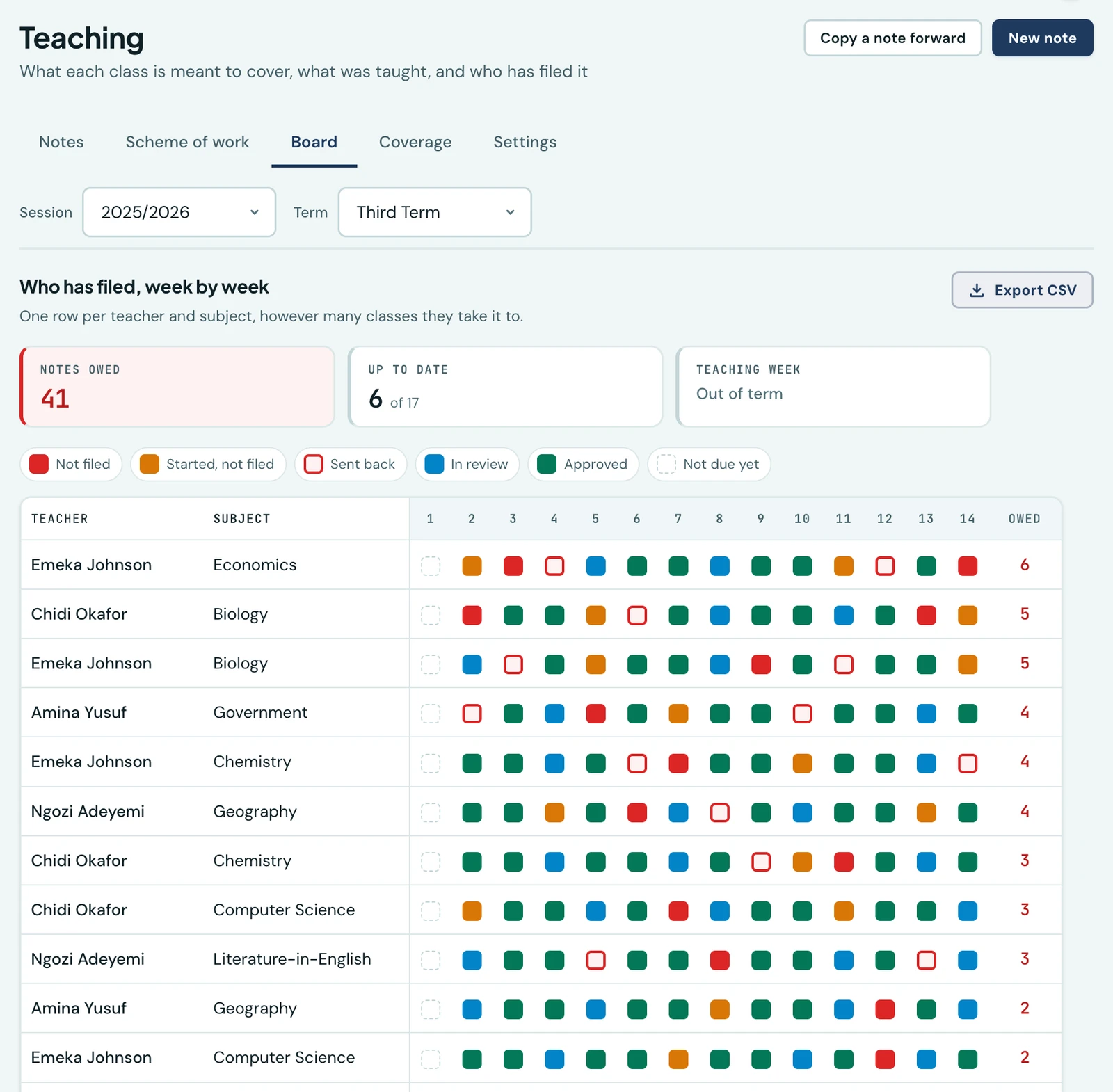
Most schools already collect lesson notes. A teacher writes what they intend to teach, hands it in, and somebody senior reads it. What no school has is an answer to the question that follows: where are Mrs Adeyemi's notes for week 7. That question is what this page is for.
Notes live under Teaching in the sidebar, which holds them alongside the scheme of work: its tabs are Scheme of work, Board, Lesson notes, Coverage and Settings. Each tab follows a permission of its own, so what you see is what your school has granted you.
What a note is
A note is an ordered list of sections, not one long block of writing. Each section has a heading and a body. Your school's headings are a setting, and it starts with the set most schools here use: Objectives, Previous Knowledge, Instructional Materials, Presentation, Evaluation, Assignment. Rename them, reorder them, add your own.
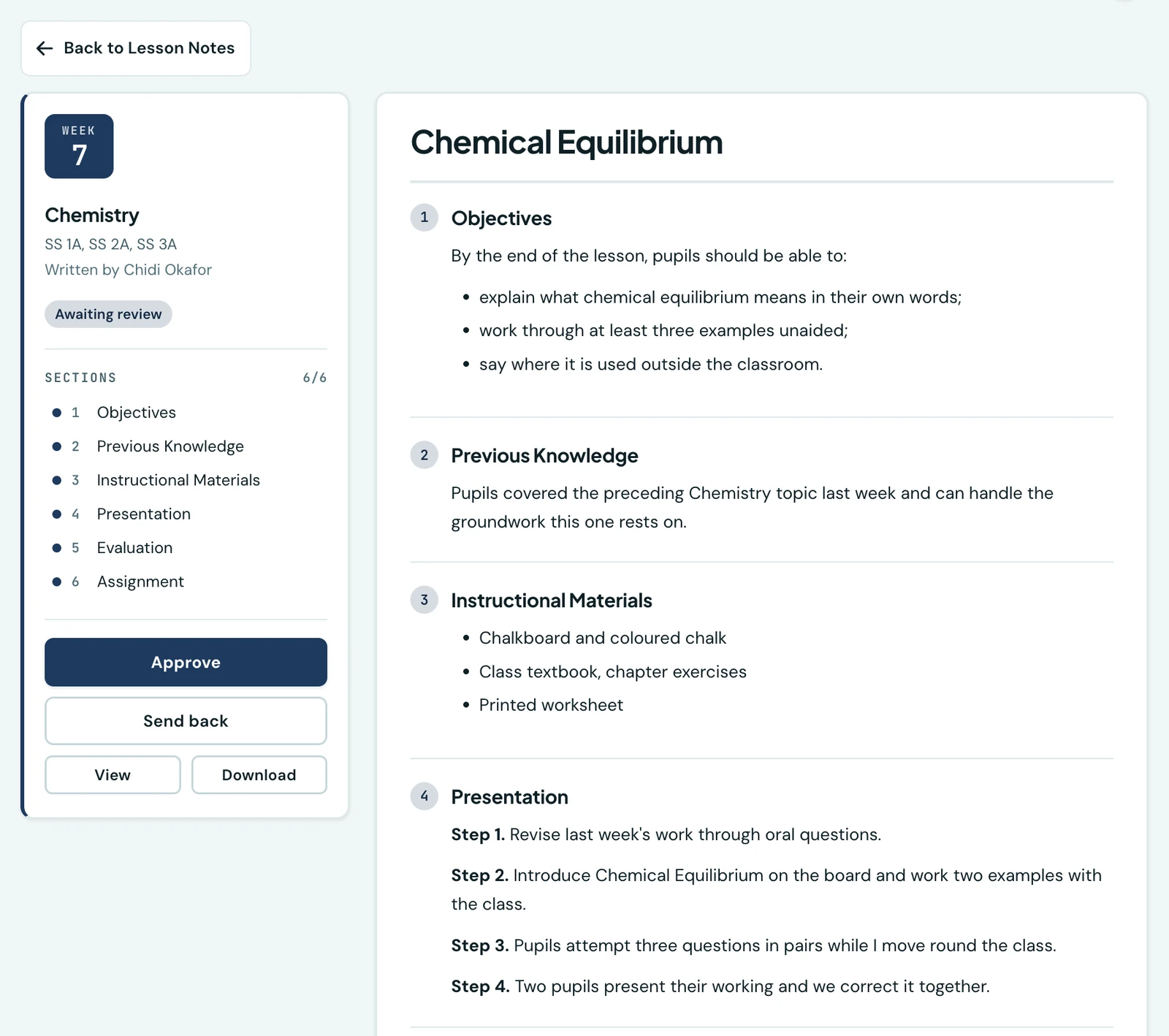
A note as its reviewer meets it. The left panel is the whole note at a glance, and the two buttons at the foot of it are the only decision this screen asks anybody to make.
The sections are the reason this works on a phone. A teacher on a handset gets one heading and one box at a time rather than a document editor, which is what makes writing a full note on the way home possible at all. See On the phone below.
The note saves itself, and there is a Save button anyway
You do not have to remember to save. A note being written saves itself a couple of seconds after you stop typing, and a line beside the section list says where your work currently is: Saved once it is on our servers, or Not saved with the reason if something went wrong.
Save now sits with the other buttons for the times you want to be told rather than to infer it, which is most often the moment before you close the laptop. It writes whatever is pending straight away.
Nothing about this files the note. Filing it is File this note, and it is a separate, deliberate act.
You are offered the classes and subjects you are assigned
The subject picker offers the subjects on your teacher record, and the class picker offers the classes on it, together with any class you are the class teacher for. That is your own work rather than the school's whole roster, which is what it used to be: a school with forty classes made finding your three a scroll.
It reads your record, not the published timetable. The timetable is built from your record, since the week's own teacher fields offer the people a class or a subject is assigned to, so it is the record that answers this. The pickers work the same way at a school that has never built a week.
If the picker is missing a class you genuinely take, the fix is on your teacher record, which the school office keeps. Ask them to add it and it appears here.
One note covers every class you take it to
A note is one teacher, one subject, one week, and the classes it covers. If you take Mathematics to JSS 2A, 2B and 2C, that is the same lesson three times, so you write it once and tick the three classes it covers.
If you take Mathematics to Year 1 and Year 2, those are different lessons, so you write a note for each, in the same week. The one rule is that a class sits on only one of your notes for a subject and week. Tick a class that already has one and the save is refused with a message naming the class, so you can open the note it is already on instead, or choose other classes. The same applies when you change a note's classes and when you copy a note.
Two teachers taking different arms of the same subject each write their own, which is right: they may be at different points in the term. If both list the same class, that is co-teaching, and nothing here stops you.
A note also carries an optional period label, which is free text ("Double period", "Friday single"). Nothing checks it against your timetable, and a school that files more than one note a week is not stopped from doing so.
The week comes from your own calendar
The week a note belongs to is a teaching week of your term, worked out from your academic calendar: its dates, your school week and the days you have recorded the school as closed. There is no second list of weeks to keep in step, and no week to set up.
Two things follow, and both are deliberate:
- A week that has not begun cannot be written into. You cannot file week 9 in week 4.
- A week the school was never open asks for nothing. If a whole week went to a holiday, the board leaves it blank rather than counting it against everybody.
Filing, and who reviews it
A note goes Draft → filed. What a filed note is called depends on whether anybody is waiting on it: with review on it reads In review until somebody answers, and with review off it reads Filed. Whether anything happens after filing is your school's decision:
Review on, which is the default. A filed note waits for somebody holding the review permission, who either approves it or sends it back with a reason. Only a note that has been sent back tells its author, because a note sent back that nobody is told about is a note that sits there. Filing, approving and copying notify nobody. Your Owner, School Administrator, Principal, Vice Principal and Academic Coordinator can review out of the box, so this is not a setting that leaves notes waiting on nobody.
Review off. Filing is the end of it. The note is in, and nobody is waiting on anybody. Turn it off if you want the record without the workflow, which suits a school where the person who would be reviewing is the person writing.
Changing this does not reach back in either direction: turning review on leaves notes already filed exactly as they are, and nobody is asked to approve eight weeks of work retrospectively; turning it off does not quietly approve anything waiting.
While review is off, the Approve and Send back buttons are not merely hidden, they are refused. A school that has turned review off has said it appoints no reviewer, and a note approved by somebody your school never nominated is a fact it cannot account for.
Editing an approved note sends it back to review. So does attaching or removing a file, because otherwise the attachments are the way round the whole cycle: get the note approved, then change everything attached to it. Both clients tell the teacher this before they act, not after.
The board
Board is the tab that answers the Monday morning question. One row per teacher and subject, one column per week of the term, one square per cell, sorted worst first. It downloads as a CSV, which is what gets printed and taken into a staff meeting.
Two rules keep it worth reading, and both are about not crying wolf. A week that has not begun is never marked as missing, so the first Monday of term is not a wall of red for work nobody owes yet. And expectation is worked out from who teaches what now, and never reaches back past the start of the term, so a teacher who took a subject over in week 6 is not shown as missing for weeks 1 to 5. The day the board counts from is your school's own, not our server's.
A week is filed only when every class a teacher is assigned for that subject is on a note. A teacher taking Maths in Year 1 and Year 2 who has filed Year 1 is still shown as owing the week, and Year 1 approved beside Year 2 still in draft shows as started, not filed, since that is the note to chase. One note covering both classes counts for both.
A row is one teacher and one subject, however many classes they take it to. A school is told once that a Maths note is owed, not once per arm.
The list
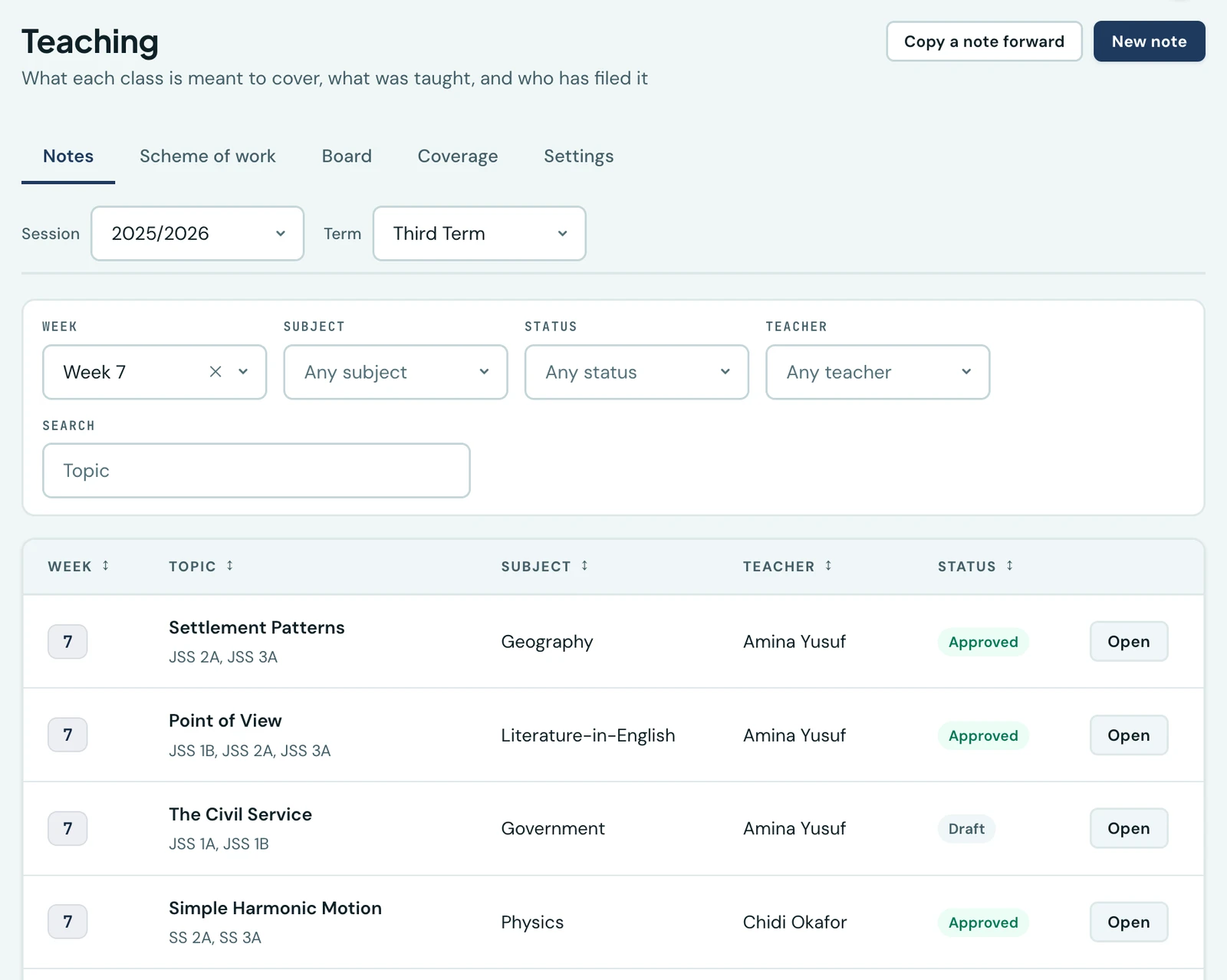
Every note under one heading, filtered by week, subject, status or teacher. The classes a note covers sit under its topic, which is what makes writing once for three arms visible to the person who did it.
A teacher sees their own notes. Somebody holding the school-wide read permission sees everybody's, and gets a Teacher filter that a teacher does not, because a filter with one option that never changes anything is not a filter.
Copying a note forward
A teacher who has taught the same subject for three years should not retype week 7. There are three ways in: from last session, from any note of their own, or from a colleague's.
That last one is a setting, and it is off until you turn it on. Some schools call it collaboration and some call it copying, and it is not our decision to make for you.
Two ways to start one. Copy a note forward on the Teaching page searches every note you may copy from by topic, which is what you remember about a lesson you taught two years ago. Copy into another week on a note you already have open starts from that one. Either way you say which session, term and week the copy lands in, and the copy is yours: the subject comes from the note it was copied from, the author is you.
The classes come across too, minus any you no longer take. Where you have changed year group since, choose the classes for the copy yourself.
A copy always arrives as a draft, whatever it was copied from. That is the difference between reusing last year's work and filing it unread. You can copy into a week you have already written for, as long as the copy is for other classes: a class that already has one of your notes for that subject and week is refused, and the message names it, rather than having that note written over.
Attachments
A note carries files: the worksheet, the marking scheme, the slides. Word, Excel and PowerPoint files, PDFs and images, up to twenty files and fifty megabytes a note, and ten megabytes a file.
The author attaches, any reader can download. A reviewer who cannot open the worksheet is reviewing half a note. Somebody with school-wide read access can still not add or remove one.
Older .doc, .xls and .ppt files are refused. They carry macros, and admitting them would make
this the platform's route for passing programs around. Save as .docx and attach that.
Copying a note carries its attachments by reference, so copying three years forward costs your school no extra storage, and deleting one note never breaks another note's download.
Printing
Any note prints as a branded PDF in your school's colours, on the same document engine as your report cards. Schools file these on paper, and a reviewer who can read a note on screen but not take it into a meeting is being asked to copy it out by hand, so printing needs only the permission to read it.
Attachments are named on the printed note rather than embedded, since a worksheet is a separate document on its own paper size.
Nothing here reaches parents
A lesson note is a professional record between a teacher and whoever oversees them. Publishing one to families would change what teachers write in it, which is the surest way to make the feature useless to the school that asked for it. Nothing on this page is visible to a parent or a pupil, and there is no setting that makes it so.
Two people, one note
If you open the same note on a laptop and on your phone, the second one warns you that the note is already being edited somewhere else and by whom. It is a warning rather than a refusal: this is an honest mistake rather than an attempt at anything, and the cost of the platform being wrong about it should be an explanation, not a locked door. The claim lapses after fifteen minutes.
On the phone
The app carries the whole of this: the notes, the board, writing one, filing it, reviewing somebody else's, copying one forward, the attachments and the printed copy. It is under More → Teaching, and which tabs you see follows the permissions you hold, so a teacher gets the notes and whoever chases the filing gets the board as well.
Writing one is a series of steps rather than a page. The first asks what the note is about and the rest give you one section at a time, which is the arrangement the six headings exist for. What you have typed is kept on the phone as you go, one copy per note, so a Year 1 note and a Year 2 note for the same subject and week never write over each other. A dropped signal on the way home costs nothing: start a note for the same subject and week again and the app offers you what you had, naming the classes it was for. Turning it down discards it only when it shares a class with the note you are starting; another class's unsent note is kept for later. Nothing is on our servers until you save it the first time. After that the app saves as you type, the same as the browser does, and the line above the buttons says which of the two places your work is in. Save is on every step rather than only the last, so a note finished on step three does not need paging through the rest to file it.
Two things the phone deliberately does not do. It writes plain text, so a section you wrote on a computer that carries a list, a table or bold text is shown to you as it is rather than edited, and turning it into plain text is offered as a choice with the cost spelled out, never done quietly. And the board's CSV is a browser download; the board itself reads the same on both.
Permissions
Five, so a school can hand out exactly as much as it means to. See Roles & Permissions.
| Permission | What it allows |
|---|---|
| View lesson notes | Read your own notes, and print them. |
| Write lesson notes | Create, edit, file and delete your own. |
| View lesson notes school-wide | Read every teacher's, school-wide. Carries no right to write one. |
| Review lesson notes | Approve a filed note or send it back. Inert while review is switched off. |
| View the submission board | The Board tab and its CSV. |
Review is granted by permission, not by job title. Your Principal, Vice Principal and Academic Coordinator hold it out of the box, along with the Owner and School Administrator. Grant it to any other role that should have it.
A teacher may write a note where the class is one of their homerooms, or the subject is one they teach. That is deliberately an "or": plenty of schools never build a timetable, and requiring one would leave them unable to use this at all.
Settings
Teaching → Settings, for anybody who can change your school's settings.
| Setting | Default |
|---|---|
| Notes are reviewed before they are filed | On |
| Teachers may copy from a colleague's note | Off |
| Headings a new note starts with | The six standard ones |
Changing the headings affects notes written afterwards. Notes already written keep the headings they were written with, because a note is a record of a lesson rather than a form to be filled in again.
What this is not
- It is not a scheme of work. A note is one week's teaching, not a plan for the term. The plan is the Scheme of Work, on the tab beside this one.
- It carries no marks. Recording what pupils scored is Grades, and the weekly version of that is Weekly grades.
Ready to try it with your school?
Three-month Basic trial. No card required to register.